Editing and Deleting Customers
Learn how to edit customer information and delete customer records when needed.
✏️ Editing Customers
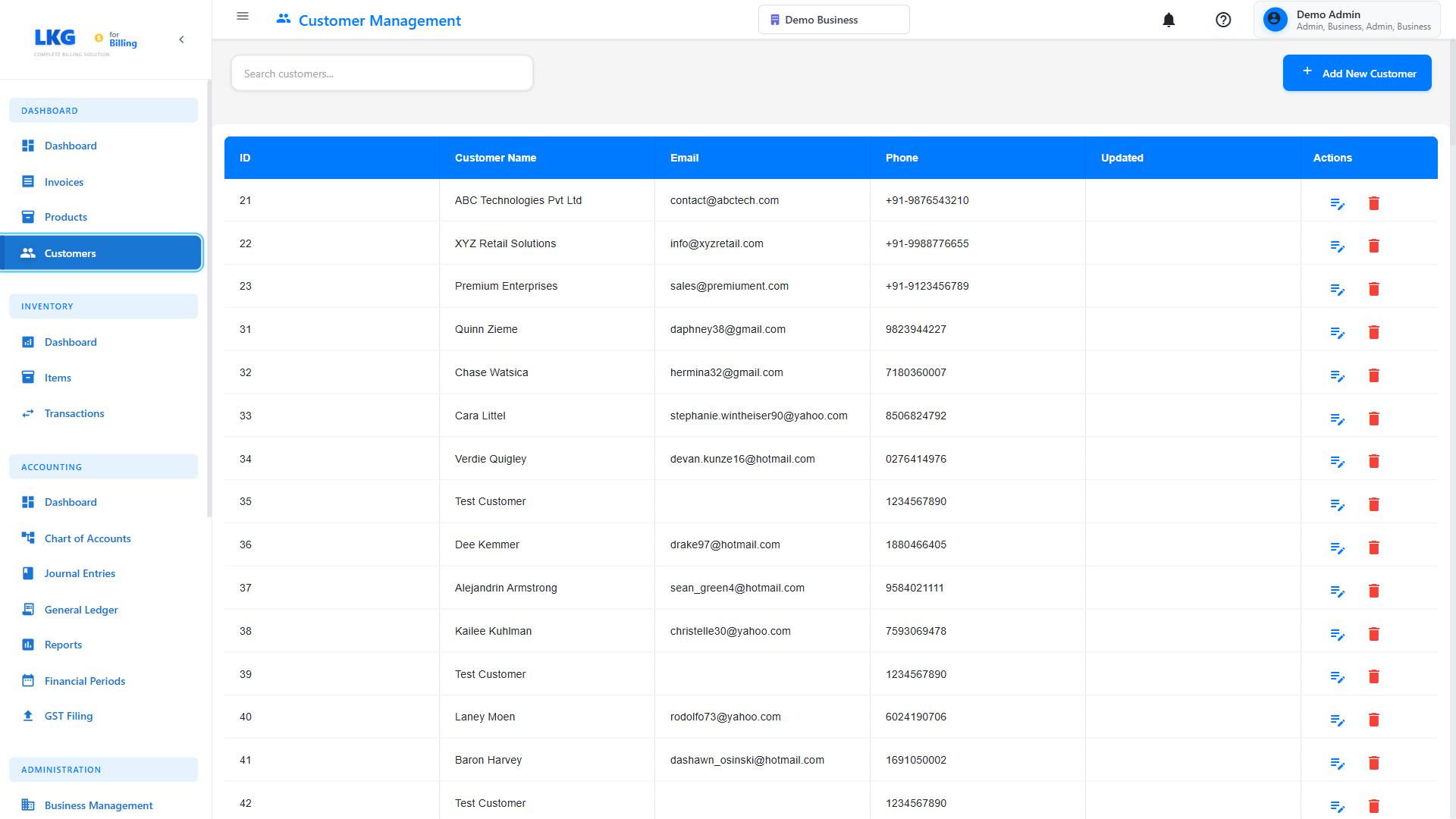
Accessing Customer Edit
- Go to Customers page
- Find the customer in the list
- Click the Edit button (pencil icon) or three-dots menu
- Select Edit Customer
- The customer form opens with existing data
Editable Fields
You can edit all customer information:
Basic Information:
- Customer Name
- Email Address
- Phone Number
- Company Name (if business)
Address:
- Billing Address
- Shipping Address (if different)
- City, State, Postal Code
- Country
Business Details:
- GSTIN (GST Number)
- PAN Number
- Contact Person
- Customer Type (Individual/Business)
Financial Settings:
- Default Payment Terms
- Credit Limit (if applicable)
- Discount Percentage
Additional:
- Notes
- Tags
- Custom Fields
Edit Restrictions
- Customer has paid invoices (can edit contact info, but not financial history)
- Customer is part of an ongoing transaction
What You Can Always Edit:
✅ Contact information (name, email, phone)
✅ Address details
✅ Notes and tags
What May Be Restricted:
⚠️ GSTIN after invoices are created (affects tax calculations)
⚠️ Customer type after transactions exist
Saving Changes
After editing:
- Review all changes carefully
- Click Save or Update Customer
- Customer information is updated across all records
- Existing invoices retain original customer data (for audit purposes)
- New invoices will use updated information
🗑️ Deleting Customers
When You Can Delete
Customers can be deleted under specific conditions:
✅ Can Delete:
- Customers with no invoices
- Customers with only draft invoices
- Test/duplicate customer records
- Customers created by mistake
❌ Cannot Delete:
- Customers with finalized invoices
- Customers with paid invoices
- Customers with any transaction history
- Customers referenced in reports
Delete Process
For customers with no invoices:
- Go to Customers page
- Find the customer to delete
- Click Actions menu (⋮)
- Select Delete
- Confirm deletion in popup
- Customer is permanently removed
What Gets Deleted
When you delete a customer:
Deleted:
- Customer contact information
- Address details
- Notes and tags
- Draft invoices (if any)
NOT Deleted:
- Finalized invoices (customer info preserved on invoice)
- Payment records
- Transaction history (if customer has transactions, deletion blocked)
Cascade Effects
If customer has draft invoices:
Option 1: Delete Customer + Drafts
- System asks if you want to delete draft invoices too
- Select Yes to remove customer and all drafts
- Select No to cancel deletion
Option 2: Convert to Inactive
- Instead of deleting, mark as inactive
- Customer hidden from active lists
- Can be reactivated later
- All history preserved
Alternative to Deletion
Marking as Inactive
Better alternative to deletion:
- Open customer for editing
- Change status to Inactive
- Customer hidden from:
- Active customer lists
- New invoice customer dropdown
- Can still view in reports
- Can reactivate anytime
Benefits:
- Preserves history
- Maintains data integrity
- Can restore if needed
- Compliant with audit requirements
Archiving Customers
Another option for old customers:
- Edit the customer
- Add tag:
Archived - Or use status: Archived
- Filter out archived customers from main list
- Keep for compliance/reference
Common Scenarios
Scenario 1: Duplicate Customer Created
Problem: Accidentally created two records for same customer.
Solution:
- Identify which record is correct (check for invoices)
- If no invoices on duplicate: Delete it
- If both have invoices: Keep both but add note "Duplicate of [Customer Name]"
- Contact admin to merge if needed
Scenario 2: Customer Out of Business
Problem: Customer company closed, no longer active.
Solution:
- Do NOT delete if they have invoices
- Mark as Inactive status
- Add note: "Company closed - [Date]"
- Keep for tax/audit records
Scenario 3: Wrong Customer Information
Problem: Customer details entered incorrectly.
Solution:
- Edit the customer record
- Update correct information
- Note: Existing invoices keep old data
- Future invoices use corrected data
Scenario 4: Test Customer Created During Setup
Problem: Test customer created while learning the system.
Solution:
- Check if customer has any invoices
- If only drafts: Delete drafts first, then customer
- If no invoices: Delete customer directly
- Safe to remove test data
Customer with Invoices
Cannot Delete - What To Do
If customer has invoices and you try to delete:
Error Message:
Cannot delete customer with existing invoices.
Please mark as inactive instead.
Solutions:
Option 1: Mark Inactive
- Edit customer
- Set status to Inactive
- Customer hidden from active use
- History preserved
Option 2: Archive
- Add "Archived" tag
- Or move to archived category
- Filter out from daily operations
Option 3: Contact Admin
- Request special handling
- Admin may be able to reassign invoices
- Then delete customer (rare cases)
Data Integrity
Related Records Impact
Before deleting a customer, check:
Invoices:
- Draft invoices will be deleted
- Finalized invoices prevent deletion
Payments:
- Payment history prevents deletion
- Must keep customer for audit
Reports:
- Customer appears in historical reports
- Deletion would create data gaps
Credits/Balances:
- Outstanding credits prevent deletion
- Unpaid invoices prevent deletion
Audit Trail
Customer deletions are logged:
Log Entry Includes:
- Who deleted (user name)
- When deleted (date and time)
- Customer details (name, ID, email)
- Reason for deletion (if entered)
Example:
Customer Deleted
Date: Nov 20, 2024 3:00 PM
User: Admin User
Customer: ABC Corp (ID: 1234)
Email: contact@abccorp.com
Reason: Duplicate entry
Bulk Operations
Bulk Edit Customers
Update multiple customers at once:
- Select customers using checkboxes
- Click Bulk Actions
- Select Edit Selected
- Change common fields:
- Payment terms
- Tags
- Status
- Click Apply to All
Bulk Delete Customers
Delete multiple customers (if eligible):
- Filter to show customers with no invoices
- Select customers to delete
- Click Bulk Actions → Delete Selected
- Confirm bulk deletion
- Only eligible customers deleted
- Customers with invoices skipped
Best Practices
Before Editing
- Verify customer - Ensure you're editing the right record
- Check invoices - See what invoices exist
- Note changes - Document significant changes
- Communicate - Inform customer of updated details
Before Deleting
- Verify no invoices - Check customer has no transactions
- Export data - Save customer info if needed
- Check duplicates - Ensure not deleting active customer
- Use inactive instead - Safer than deletion
Data Cleanup
Regular maintenance:
- Monthly: Review inactive customers
- Quarterly: Archive old customers
- Annually: Clean test/duplicate records
- Always: Verify before deleting
Permissions
Who Can Edit/Delete
Admin Users:
- Edit all customers
- Delete customers (if eligible)
- Bulk operations
- Override restrictions (limited)
Regular Users:
- Edit customers they created
- Cannot delete customers with invoices
- Limited bulk operations
Read-Only Users:
- Cannot edit customers
- Cannot delete customers
- View-only access
Troubleshooting
Cannot Edit Customer
Problem: Edit button is grayed out.
Solutions:
- Check you have edit permissions
- Verify customer is not locked by another user
- Refresh the page
- Contact administrator
Changes Not Saving
Problem: Customer edits not saving.
Solutions:
- Check for validation errors (red highlights)
- Ensure required fields filled
- Verify email format is correct
- Check GSTIN format if applicable
Cannot Delete Customer
Problem: Delete option not available or fails.
Reasons:
- Customer has invoices (finalized or paid)
- Customer has payment records
- Customer is referenced in reports
- Insufficient permissions
Solution: Mark customer as Inactive instead of deleting.
Next Steps
- Customer Overview - Understanding customer management
- Create Customer - Adding new customers
- Invoice Management - Creating invoices for customers
Important: Always use "Inactive" status instead of deletion for customers with transaction history. This maintains data integrity and compliance with accounting standards.