Inventory Management Overview
The Inventory Management module helps you track and manage your stock levels, monitor product availability, and maintain accurate inventory records across your business operations.
What is Inventory Management?
Inventory Management in LKG Billing provides comprehensive tools to:
- Track Stock Levels - Monitor current stock quantities in real-time
- Record Transactions - Track all stock movements (purchases, sales, adjustments)
- Low Stock Alerts - Get notified when products reach minimum stock levels
- Stock Adjustments - Make manual adjustments for damaged, lost, or found items
- Inventory Valuation - View total inventory value based on unit costs
- Transaction History - Complete audit trail of all inventory movements
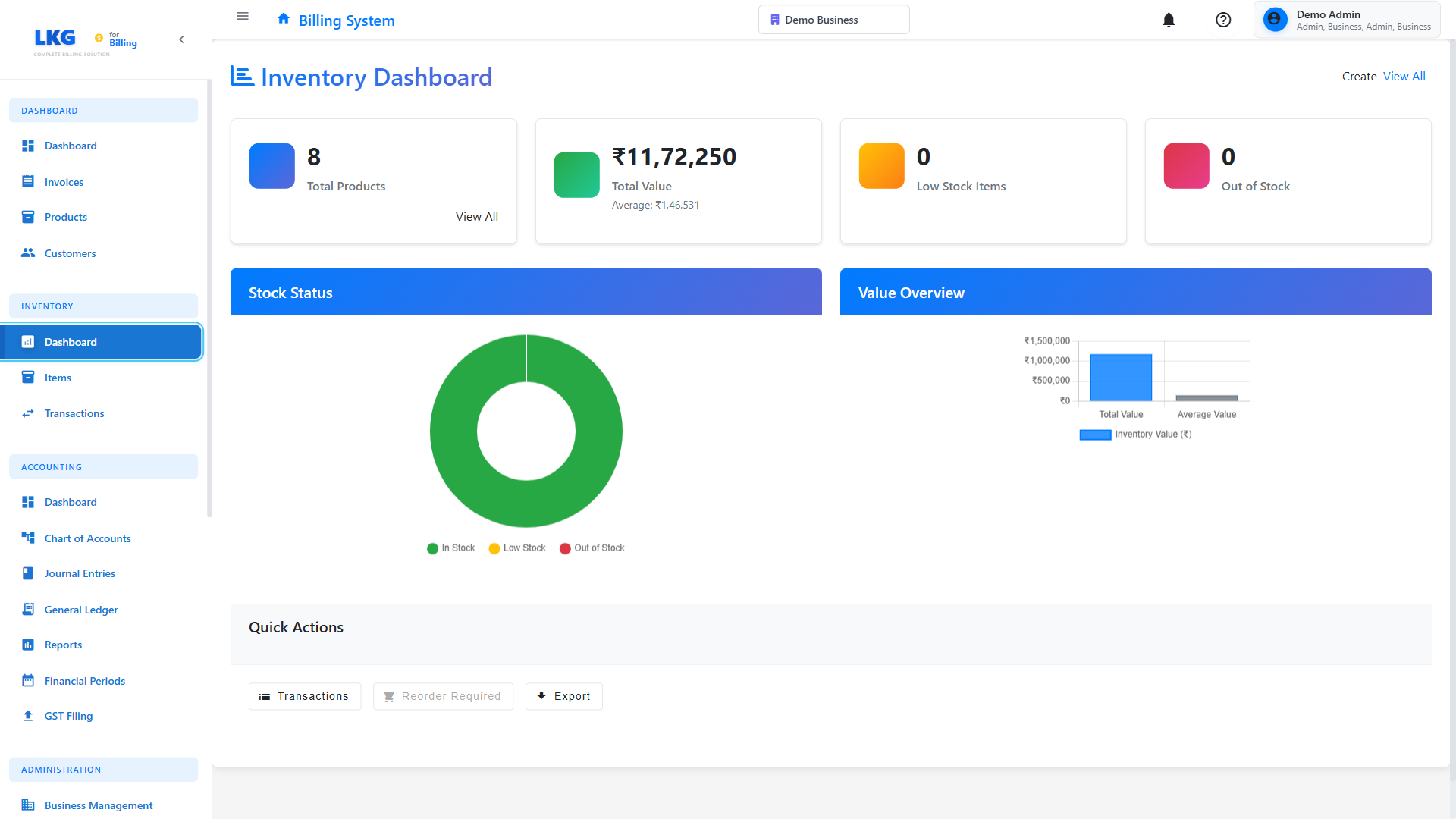
Key Features
📊 Real-Time Dashboard
The Inventory Dashboard provides at-a-glance insights:
- Total Products - Number of unique products tracked
- Total Stock Value - Monetary value of all inventory
- Low Stock Items - Products below minimum threshold
- Out of Stock - Products with zero quantity
- Recent Transactions - Latest stock movements
- Stock Status - Quick overview of inventory health
📦 Inventory Items
Manage your complete product inventory:
- Product Details - Name, SKU, category, description
- Stock Levels - Current quantity, minimum stock, maximum stock
- Unit Cost - Purchase or production cost per unit
- Selling Price - Linked to product pricing
- Storage Location - Physical location tracking
- Stock Status - In Stock, Low Stock, Out of Stock
📝 Stock Transactions
Complete transaction history with:
-
Transaction Types:
- Purchase (stock in)
- Sale (stock out)
- Adjustment (manual corrections)
- Transfer (between locations)
- Return (customer/supplier returns)
-
Transaction Details:
- Date and time
- Quantity change
- Reference number
- Notes/reason
- User who made the change
🔄 Stock Adjustments
Make corrections to inventory:
- Add Stock - Record received inventory
- Remove Stock - Record damaged or lost items
- Set Quantity - Direct quantity updates
- Adjustment Reasons:
- Damaged goods
- Lost/stolen
- Found/discovered
- Audit correction
- Other (with notes)
Benefits
Better Stock Control
- Prevent stockouts and overselling
- Optimize inventory levels
- Reduce carrying costs
Improved Accuracy
- Automated stock updates from sales
- Manual adjustment tracking
- Complete audit trail
Cost Management
- Track inventory value
- Monitor slow-moving items
- Identify shrinkage
Business Insights
- Stock turnover analysis
- Popular product identification
- Seasonal trends
Getting Started
1. Set Up Inventory Items
Before using inventory management:
- Navigate to Inventory → Items
- Create inventory records for your products
- Set initial stock quantities
- Define minimum stock levels
- Enter unit costs
2. Enable Inventory Tracking
For each product:
- Link product to inventory item
- Enable stock tracking
- Set reorder points
- Configure alerts
3. Monitor and Adjust
Regularly:
- Check dashboard for alerts
- Review low stock items
- Make stock adjustments as needed
- Analyze transaction history
Inventory Workflow
Product Setup
    ↓
Initial Stock Entry
    ↓
Sales/Purchases (Auto Updates)
    ↓
Stock Adjustments (Manual)
    ↓
Monitoring & Alerts
    ↓
Reordering
Admin Access Only
Inventory Management is only available to Admin users. Regular users cannot access inventory features to maintain data integrity and security.
Next Steps
- View Inventory Items - Manage your inventory
- Track Transactions - View stock movements
- Stock Adjustments - Make inventory corrections
Tip: Enable inventory tracking only for physical products that you stock. Services and digital products typically don't need inventory management.