Customer Management Overview
Learn how to manage your customer database in LKG Billing.
👥 What are Customers?
Customers are the individuals or businesses you provide services to and invoice. The Customer Management section helps you:
- Store customer contact information
- Track customer transaction history
- Organize customers for easy access
- Generate customer-specific reports
📋 Customer List View
When you navigate to the Customers section, you'll see a list of all your customers.
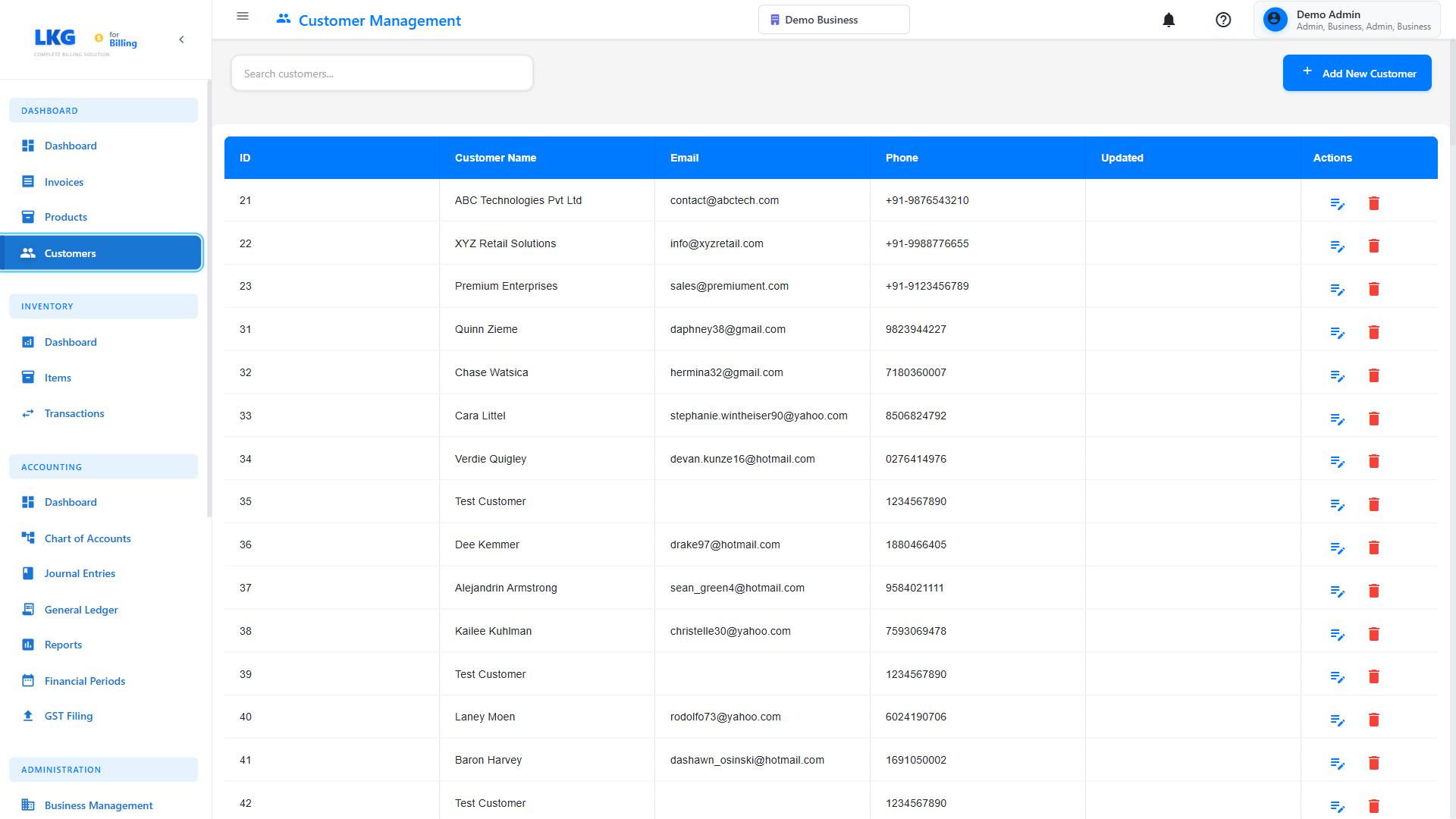
###List Features
- Search Bar - Quickly find customers by name, email, or phone
- Filter Options - Sort by name, date added, or total transactions
- Add Customer Button - Create new customer records
- Customer Cards/Table - View all customer details at a glance
Each customer entry typically shows:
- Customer name
- Email address
- Phone number
- Total invoices
- Total amount
- Last transaction date
🔍 Searching for Customers
Use the search functionality to quickly find a customer:
- Click in the Search box
- Type customer name, email, or phone number
- Results filter automatically as you type
Example searches:
John- Find all customers named John@gmail.com- Find all Gmail customers+91- Find all customers with Indian phone numbers
📊 Customer Information
Click on any customer to view their complete profile:
- Contact Information - Name, email, phone, address
- Business Details - Company name, tax ID (if applicable)
- Invoice History - All invoices sent to this customer
- Payment History - All payments received
- Total Statistics - Lifetime value, outstanding balance
🎯 Common Customer Actions
Add New Customer
Learn how to create a new customer.
Edit Customer
- Find the customer in the list
- Click the Edit button (pencil icon)
- Update the information
- Click Save
Delete Customer
- Find the customer in the list
- Click the Delete button (trash icon)
- Confirm the deletion
Delete Warning
Deleting a customer will not delete their associated invoices, but you won't be able to create new invoices for them.
View Customer Invoices
- Click on the customer name
- Scroll to the Invoices section
- View all invoices for this customer
💡 Customer Management Tips
Best Practices
- Complete Information - Fill in as many details as possible for better record-keeping
- Regular Updates - Keep email and phone numbers current
- Use Tags/Notes - Add notes to remember important customer preferences
- Backup Data - Regularly export customer data for backup
📤 Importing Customers
If you have existing customer data:
- Prepare a CSV file with customer information
- Go to Settings → Import/Export
- Choose Import Customers
- Upload your CSV file
- Map the columns to match the required fields
- Click Import
CSV Format Example:
Name,Email,Phone,Address,City,State,Pincode
John Doe,john@example.com,+91-98765-43210,"123 Main St",Mumbai,Maharashtra,400001
Jane Smith,jane@example.com,+91-98765-43211,"456 Park Ave",Delhi,Delhi,110001
🚀 Next Steps
- Create Your First Customer - Step-by-step guide
- Edit/Delete Customers - Manage existing customer information
- Invoice Management - Create invoices for customers
Ready to add customers? Click Next to learn how to create a new customer! 👉