Invoice Management Overview
Learn how to create and manage invoices in LKG Billing.
📋 What are Invoices?
Invoices are formal requests for payment sent to customers for goods or services provided. The Invoice Management section helps you:
- Create professional invoices
- Track invoice status (Draft, Sent, Paid, Overdue)
- Send invoices to customers via email
- Record payments against invoices
- Generate invoice reports
📊 Invoice List View
When you navigate to the Invoices section, you'll see all your invoices.
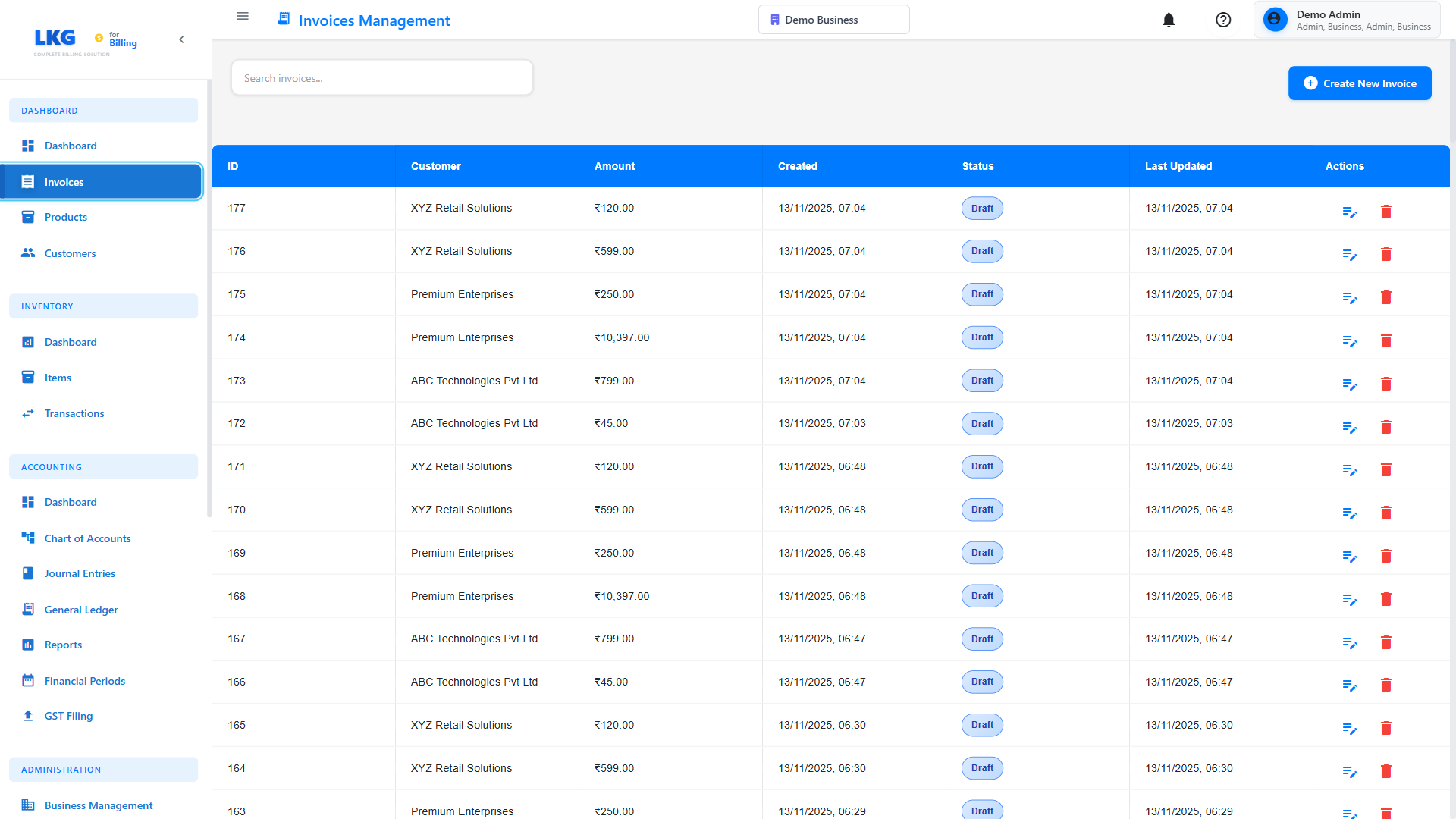
List Features
- Search Bar - Find invoices by number, customer, or amount
- Filter Options - Filter by status, date, customer
- Create Invoice Button - Generate new invoices
- Invoice Table - View all invoice details
Each invoice entry typically shows:
- Invoice number (e.g., INV-2024-001)
- Customer name
- Invoice date
- Due date
- Total amount
- Status badge (Paid, Pending, Overdue)
- Quick actions (View, Edit, Delete, Send)
🏷️ Invoice Statuses
Invoices can have different statuses:
📝 Draft
- Invoice is being prepared
- Not yet sent to customer
- Can be edited freely
- Not included in reports
📤 Sent
- Invoice has been sent to customer
- Awaiting payment
- Customer can view the invoice
- Included in pending reports
✅ Paid
- Payment has been received
- Invoice is closed
- Included in revenue reports
- Cannot be edited
⚠️ Overdue
- Payment due date has passed
- Payment not received
- Needs follow-up
- Included in overdue reports
🔍 Searching and Filtering
Search Invoices
Find invoices using:
- Invoice number:
INV-2024-001 - Customer name:
John Doe - Amount:
1500 - Date range
Filter Options
- By Status: All, Draft, Sent, Paid, Overdue
- By Date: Today, This Week, This Month, Custom Range
- By Customer: Select from dropdown
- By Amount: Min and Max range
📊 Invoice Information
Click on any invoice to view complete details:
Header Information
- Invoice number
- Invoice date
- Due date
- Reference/PO number
Customer Details
- Customer name
- Billing address
- Email and phone
- Tax ID (if applicable)
Line Items
- Product/Service name
- Description
- Quantity
- Unit price
- Tax rate
- Line total
Calculations
- Subtotal
- Tax amount
- Discount (if any)
- Total amount
- Amount paid
- Balance due
🎯 Common Invoice Actions
Create New Invoice
Learn how to create a new invoice.
Edit Invoice
- Find the invoice (must be in Draft status)
- Click Edit
- Make changes
- Click Save
Editing Restrictions
Only Draft invoices can be edited. For Sent/Paid invoices, create a credit note instead.
Send Invoice
- Open the invoice
- Click Send button
- Verify customer email
- Add a message (optional)
- Click Send Email
Record Payment
- Open the invoice
- Click Record Payment
- Enter payment details
- Save payment record
Learn more: Recording Payments
Download/Print
- PDF: Download as PDF for printing or emailing
- Print: Print directly from browser
- Email: Send PDF via email
💡 Invoice Management Tips
Best Practices
- Sequential Numbers - Use automatic numbering for better organization
- Clear Descriptions - Write detailed line item descriptions
- Set Due Dates - Typically 15-30 days from invoice date
- Send Promptly - Send invoices immediately after service delivery
- Follow Up - Send reminders for overdue invoices
- Keep Records - Don't delete finalized or paid invoices
📧 Email Templates
Customize email templates for:
- New invoice notification
- Payment reminder (7 days before due)
- Overdue notice (after due date)
- Payment received confirmation
- Thank you message
Configure in: Settings → Email Templates
📊 Invoice Reports
Generate reports to analyze:
- Total invoices by status
- Revenue by period
- Outstanding amounts
- Customer payment history
- Tax collected
Learn more: Reports
🚀 Next Steps
- Create Your First Invoice - Step-by-step guide
- Draft Invoices - Working with drafts
- Edit Invoices - Making changes to invoices
- Invoice Payments - Managing payments
Ready to create invoices? Click Next to learn how! 👉