Settings & Configuration
Learn how to customize LKG Billing to match your business needs.
⚙️ Settings Overview
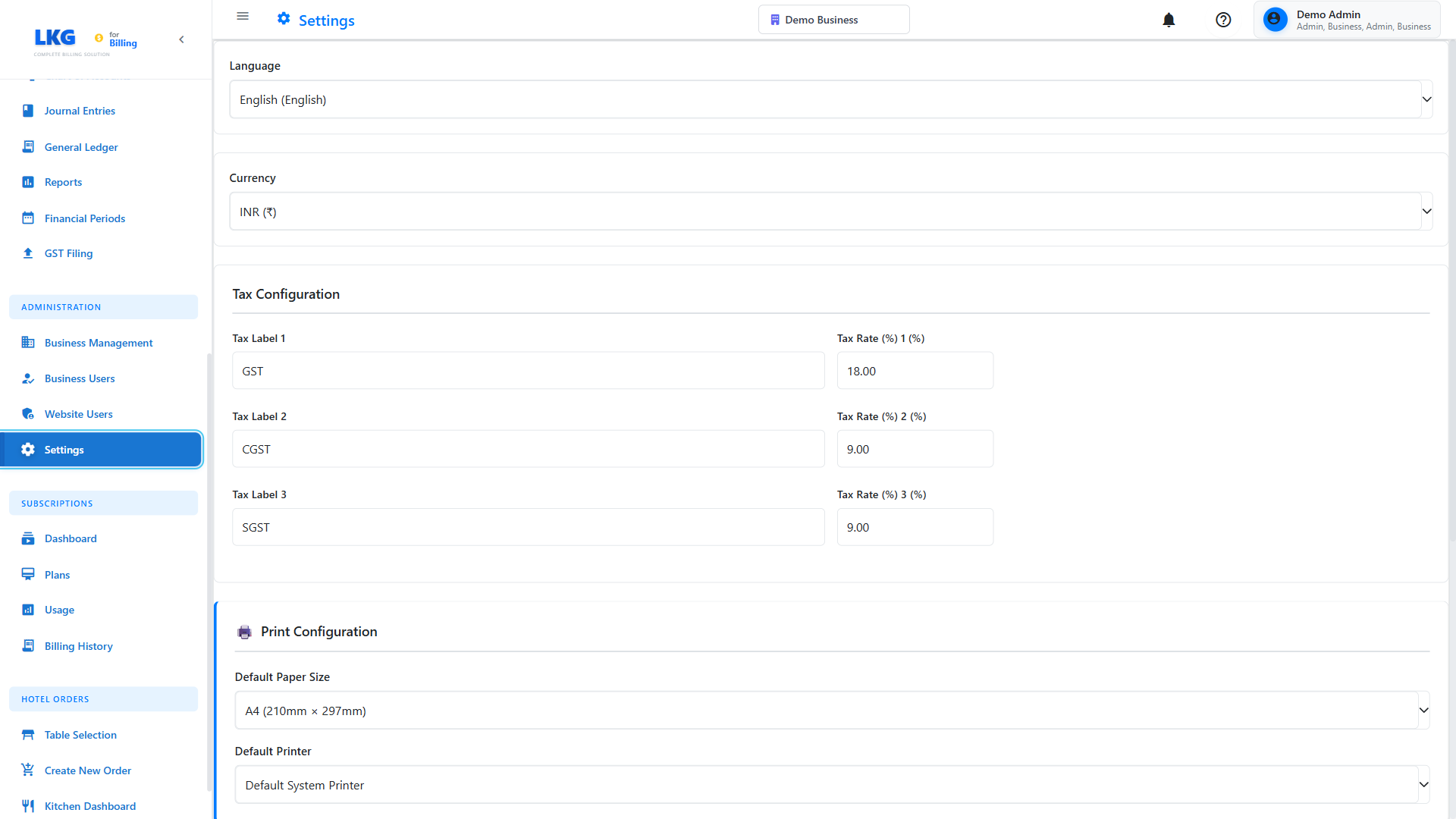
The Settings section allows you to configure the application according to your preferences and business requirements.
🏢 Business Profile
Configure your company information that appears on invoices.
Company Details
Business Name
Your registered company or business name.
Example: LKG Technologies Pvt Ltd
Address
Complete business address.
Example:
Tech Park, Building A, Floor 5
MG Road, Bangalore
Karnataka 560001
India
Contact Information
- Phone:
+91-80-1234-5678 - Email:
info@lkgtech.com - Website:
https://www.lkgtech.com
Tax Information
- GST Number (India):
29ABCDE1234F1Z5 - PAN Number:
ABCDE1234F - Tax ID (Other regions): Varies by country
Logo
Upload your company logo for invoices and emails.
Recommended:
- Format: PNG with transparent background
- Size: 200×200 pixels or 300×300 pixels
- Max file size: 2MB
🧾 Invoice Settings
Customize invoice appearance and behavior.
Invoice Numbering
Number Format
Define how invoice numbers are generated.
Examples:
INV-{YYYY}-{000}→INV-2024-001{YYYY}{MM}-{000}→202411-001BILL-{000}→BILL-001
Placeholders:
{YYYY}- 4-digit year{YY}- 2-digit year{MM}- 2-digit month{DD}- 2-digit day{000}- Auto-incrementing number
Next Invoice Number
Set the starting number.
Example: Start from 1000 → First invoice: INV-2024-1000
Invoice Template
Choose Template:
- Modern
- Classic
- Minimal
- Professional
Customize Colors:
- Primary color
- Accent color
- Text color
Header/Footer:
- Add custom text
- Include terms & conditions
- Add payment instructions
Payment Terms
Default Terms
Set default payment period.
Options:
- Net 15 (15 days)
- Net 30 (30 days)
- Net 45 (45 days)
- Net 60 (60 days)
- Due on Receipt
- Custom
Late Fee
Configure automatic late fees.
Example:
- Type: Percentage or Fixed Amount
- Amount:
2%per month or₹500flat - Grace Period: 5 days after due date
Currency
Primary Currency
Your default currency.
Examples:
- INR (₹) - Indian Rupee
- USD ($) - US Dollar
- EUR (€) - Euro
- GBP (£) - British Pound
Currency Format:
- Symbol position: Before/After amount
- Decimal places: 2
- Thousands separator: Comma/Space/Period
Example Formats:
₹1,234.56$1,234.56€1.234,56
Multi-Currency (Premium)
Accept payments in multiple currencies.
Tax Settings
Default Tax Rate
Primary tax percentage.
Examples:
- India: 18% (GST)
- UK: 20% (VAT)
- USA: Varies by state
Tax Name
Display name on invoices.
Examples:
- GST
- VAT
- Sales Tax
Multiple Tax Rates
Configure different rates for different products.
Example:
- Services: 18%
- Essential goods: 5%
- Luxury items: 28%
📧 Email Settings
Configure email templates and notifications.
Email Templates
Customize emails for different purposes:
Invoice Email
Subject: Invoice {invoice_number} from {company_name}

Dear {customer_name},

Please find attached invoice {invoice_number} for
{invoice_description}.

Amount Due: {invoice_total}
Due Date: {due_date}

Payment Instructions:
{payment_instructions}

Thank you for your business!

Best regards,
{company_name}
Payment Receipt
Subject: Payment Receipt - {receipt_number}

Dear {customer_name},

Thank you for your payment!

Payment Amount: {payment_amount}
Invoice: {invoice_number}
Balance Remaining: {balance}

Your receipt is attached.

{company_name}
Payment Reminder
Subject: Payment Reminder - Invoice {invoice_number}

Dear {customer_name},

This is a friendly reminder that invoice {invoice_number}
is due on {due_date}.

Amount Due: {invoice_total}

Please contact us if you have any questions.

{company_name}
Email Placeholders
Use these in templates:
{company_name}- Your business name{customer_name}- Customer name{invoice_number}- Invoice number{invoice_total}- Total amount{due_date}- Payment due date{payment_amount}- Payment received{balance}- Remaining balance
SMTP Configuration
Email Service:
- Use system default
- Gmail
- Outlook
- Custom SMTP
Custom SMTP Settings:
- Server:
smtp.gmail.com - Port:
587(TLS) or465(SSL) - Username: Your email
- Password/App Password
- Encryption: TLS/SSL
👤 User Profile
Manage your account settings.
Personal Information
- Name
- Email address
- Phone number
- Profile picture
Change Password
- Enter current password
- Enter new password
- Confirm new password
- Click Update Password
Password Requirements:
- Minimum 8 characters
- At least one uppercase letter
- At least one number
- At least one special character
Notification Preferences
Email Notifications:
- ☑ New invoice created
- ☑ Payment received
- ☑ Invoice overdue
- ☐ Weekly summary
- ☐ Monthly report
In-App Notifications:
- ☑ Payment reminders
- ☑ System updates
- ☐ Marketing messages
🔐 Security Settings
Two-Factor Authentication (2FA)
Enable extra security:
- Enable 2FA
- Scan QR code with authenticator app
- Enter verification code
- Save backup codes
Recommended Apps:
- Google Authenticator
- Microsoft Authenticator
- Authy
Session Management
Active Sessions
View and manage logged-in devices.
Session Timeout
Auto-logout after inactivity.
Options:
- 15 minutes
- 30 minutes
- 1 hour
- 4 hours
- Never
API Keys (Advanced)
Generate API keys for integrations.
- Click Generate New Key
- Name the key
- Set permissions
- Copy and save securely
Never share API keys. Regenerate if compromised.
💳 Payment Gateway
Configure online payment acceptance.
Razorpay (India)
- Sign up at razorpay.com
- Get API keys
- Enter in Settings:
- Key ID
- Key Secret
- Test mode: Use test keys
- Live mode: Use live keys
Stripe (International)
- Create Stripe account
- Get publishable key and secret key
- Configure webhook
- Test with test cards
PayPal
- Create business account
- Get API credentials
- Configure IPN
- Set return URLs
📱 Mobile App Settings
App Preferences
Theme:
- Light
- Dark
- Auto (system)
Default View:
- Dashboard
- Invoices
- Customers
Offline Mode:
- ☑ Allow offline access
- Auto-sync when online
🔄 Import/Export
Import Data
Import from other systems:
Supported Formats:
- CSV
- Excel (.xlsx)
- JSON
Data Types:
- Customers
- Products
- Invoices
Steps:
- Download template
- Fill with your data
- Upload file
- Map columns
- Validate and import
Export Data
Backup your data:
Export Options:
- All data
- Customers only
- Invoices only
- Payments only
Formats:
- Excel
- CSV
- JSON
Frequency:
- Manual export
- Scheduled backups (daily/weekly/monthly)
🌐 Localization
Language
Select interface language:
- English
- Hindi (हिंदी)
- Spanish (Español)
- French (Français)
Date Format
Options:
- DD/MM/YYYY (20/11/2024)
- MM/DD/YYYY (11/20/2024)
- YYYY-MM-DD (2024-11-20)
Time Format
Options:
- 12-hour (2:30 PM)
- 24-hour (14:30)
Number Format
Decimal Separator: . or ,
Thousands Separator: , or . or space
Examples:
1,234.56(US/UK)1.234,56(Europe)1 234,56(France)
⚙️ Advanced Settings
Backup & Restore
Automatic Backups:
- ☑ Enable daily backups
- Retention: 30 days
- Storage: Cloud/Local
Manual Backup:
- Click Create Backup
- Download backup file
- Store securely
Restore:
- Upload backup file
- Verify data
- Restore
Regular backups prevent data loss. Keep backups in multiple locations.
Custom Fields
Add custom fields to:
- Customers
- Products
- Invoices
Example:
Customer Custom Fields:
- Account Manager
- Industry Type
- Referral Source
Integrations
Connect with other apps:
- Accounting software (QuickBooks, Tally)
- CRM (Salesforce, HubSpot)
- Email marketing (Mailchimp)
- Cloud storage (Google Drive, Dropbox)
💡 Settings Best Practices
- Complete Profile - Fill all business details for professional invoices
- Set Defaults - Configure default terms and tax rates
- Customize Templates - Match invoices to your brand
- Enable 2FA - Secure your account
- Regular Backups - Export data monthly
- Test Emails - Send test invoice emails
- Update Regularly - Keep information current
- Use Strong Passwords - Change periodically
🚀 Next Steps
After configuring settings:
- Create Your First Invoice
- Detailed Settings - Complete settings guide
- Dashboard Overview - Get started
Settings configured? You're ready to use LKG Billing effectively! 🎉