Creating an Invoice
Learn how to create professional invoices for your customers.
📋 Invoice Creation Workflow
Creating an invoice involves selecting a customer, adding products/services, and setting payment terms.
Step 1: Navigate to Invoices
From the dashboard or main menu, click on Invoices.
Step 2: Click "Create Invoice"
Look for the "New Invoice" or "Create" button (usually with a ➕ icon).
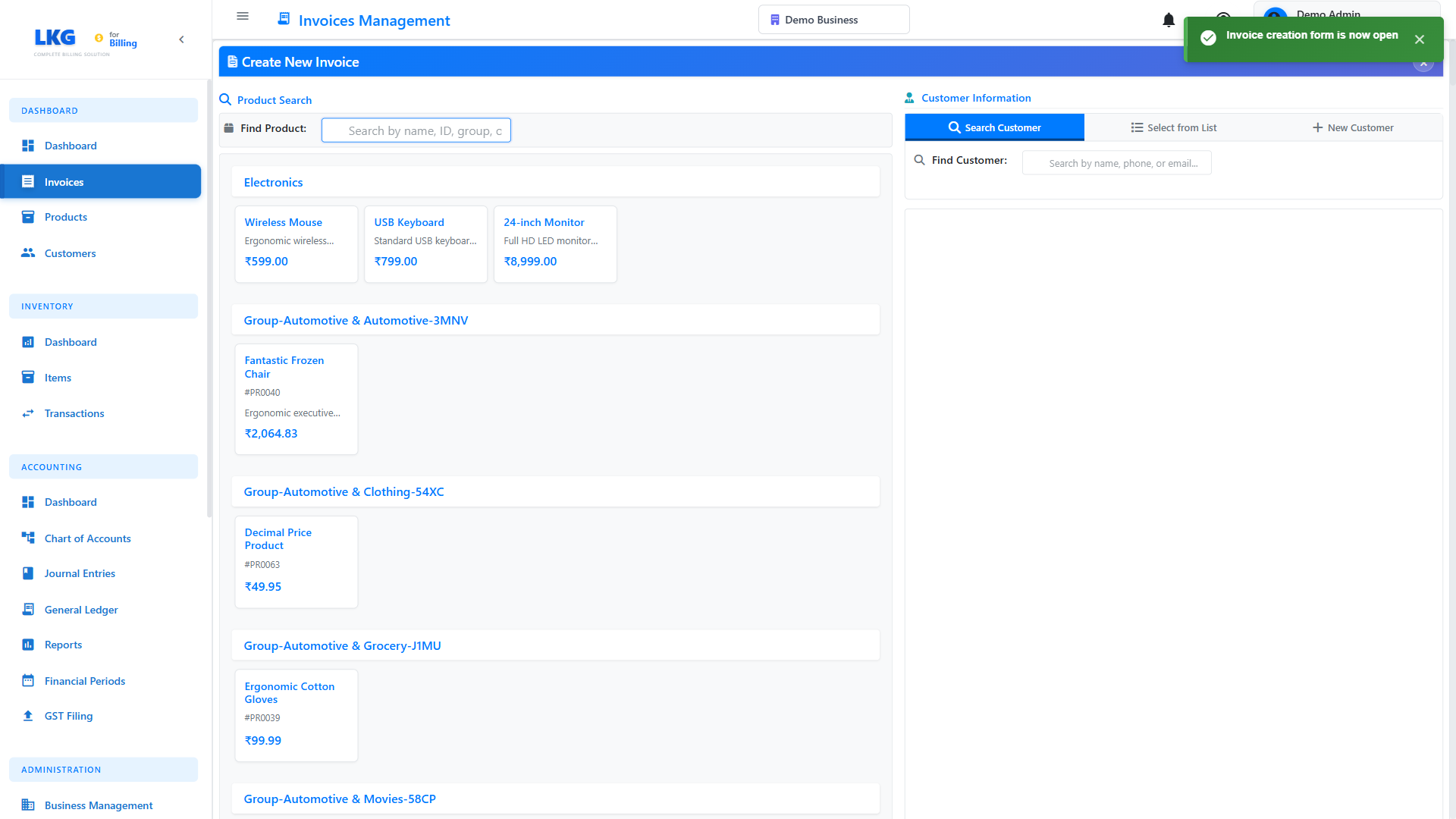
📝 Invoice Header Information
Customer Selection
Step 1: Click the Customer dropdown or search field
Step 2: Search for the customer by name or email
Step 3: Select the customer from the list
If the customer doesn't exist, click "Add New Customer" directly from the invoice form.
Sample Customer: John Doe or Acme Corporation
Invoice Number
The invoice number is typically auto-generated:
Format Examples:
INV-2024-001BILL-2024-11-0012024-001
The system automatically assigns the next sequential number. You can customize the format in Settings.
Invoice Date
The date when the invoice is issued.
Default: Today's date
Format: November 20, 2024 or 20/11/2024
Due Date
The payment deadline for the invoice.
Common Options:
- Net 15: 15 days from invoice date
- Net 30: 30 days from invoice date
- Net 45: 45 days from invoice date
- Due on Receipt: Immediate payment
- Custom Date: Specific date
Sample Due Date: 30 days from today = December 20, 2024
For new clients, use shorter terms (Net 15). For established clients, Net 30 is standard.
Reference / PO Number (Optional)
Customer's purchase order or reference number.
Examples:
PO-2024-12345REF-CONSULTING-NOVProject-Website-Redesign
📦 Adding Line Items
This is where you add products/services to the invoice.
Step 1: Click "Add Item" or "Add Line"
Step 2: Select Product/Service
Option A: Select Existing Product
- Click the product dropdown
- Search or scroll to find the product
- Click to select
Option B: Add Custom Item
- Click "Custom Item" or "New Item"
- Enter item details manually
Step 3: Enter Item Details
Description
What you're charging for.
Examples:
Professional IT Consulting - November 2024
Website Design and Development
Monthly Software License
Technical Support - 10 hours
Quantity
How many units.
Examples:
1- For fixed-price items10- For 10 hours5- For 5 licenses
Unit Price
Price per unit.
Examples:
1500.00- ₹1,500 per hour25000.00- ₹25,000 for package999.00- ₹999 per month
Tax Rate (Optional)
Applicable tax percentage.
Examples:
18- 18% GST12- 12% GST0- No tax
Line Total
Automatically calculated: Quantity × Unit Price + Tax
Example Calculation:
Quantity: 10 hours
Unit Price: ₹1,500
Subtotal: ₹15,000
Tax (18%): ₹2,700
Line Total: ₹17,700
Step 4: Add More Items
Click "Add Another Item" to add multiple products/services.
Sample Multi-Item Invoice:
Item 1: Website Design Package
Quantity: 1
Price: ₹25,000
Tax: 18%
Total: ₹29,500

Item 2: Annual Hosting
Quantity: 1
Price: ₹5,000
Tax: 18%
Total: ₹5,900

Item 3: Domain Registration
Quantity: 1
Price: ₹1,000
Tax: 18%
Total: ₹1,180
💰 Invoice Totals
The system automatically calculates:
Subtotal
Sum of all line items before tax.
Example: ₹31,000
Tax Amount
Total tax across all items.
Example: ₹5,580 (18% of ₹31,000)
Discount (Optional)
Apply a discount to the invoice.
Discount Types:
- Percentage:
10%off total - Fixed Amount:
₹2,000off
Example:
Subtotal: ₹31,000
Discount (10%): -₹3,100
After Discount: ₹27,900
Tax (18%): ₹5,022
Total: ₹32,922
Grand Total
Final amount due.
Example: ₹36,580
📄 Additional Options
Terms & Conditions
Add payment terms, late fees, or other conditions.
Sample Terms:
Payment Terms:
- Payment due within 30 days of invoice date
- Late payment fee of 2% per month will apply
- Bank transfer preferred
- Please include invoice number in payment reference

Returns & Refunds:
- Services rendered are non-refundable
- Product returns accepted within 7 days
Notes
Internal notes or special instructions for the customer.
Sample Notes:
Thank you for your business!
Please contact us if you have any questions.

Bank Details:
Account Name: LKG for Billing
Account Number: 1234567890
IFSC Code: ABCD0001234
Attachments
Attach relevant documents:
- Project proposals
- Contracts
- Delivery receipts
- Other supporting documents
✅ Saving the Invoice
You have several options when saving:
Save as Draft
- Invoice is saved but not sent
- You can edit it later
- Not visible to customer
- Use when: Invoice needs review or approval
Button: Click "Save as Draft"
Save and Send
- Invoice is saved and emailed to customer
- Status changes to "Sent"
- Customer receives email with PDF
- Use when: Invoice is ready to send
Button: Click "Save and Send"
Save and Print
- Invoice is saved
- Print dialog opens
- You can print physical copy
- Use when: Customer needs paper invoice
Button: Click "Save and Print"
📧 Sending the Invoice
After creating the invoice:
- Click "Send" button
- Verify customer email address
- Customize email message (optional)
- Click "Send Email"
Sample Email:
Subject: Invoice INV-2024-001 from LKG for Billing

Dear John Doe,

Please find attached invoice INV-2024-001 for the services
rendered in November 2024.

Invoice Total: ₹36,580
Due Date: December 20, 2024

You can pay via bank transfer using the details in the invoice.

Thank you for your business!

Best regards,
LKG for Billing Team
💡 Sample Complete Invoice
Here's a full example:
INVOICE: INV-2024-001
Date: November 20, 2024
Due Date: December 20, 2024

BILL TO:
John Doe
Acme Corporation
john@acmecorp.com
+91-98765-43210

ITEMS:
1. Professional Consulting - November 2024
   10 hours × ₹1,500 = ₹15,000
   Tax (18%): ₹2,700
   Total: ₹17,700

2. Website Design Package
   1 × ₹25,000 = ₹25,000
   Tax (18%): ₹4,500
   Total: ₹29,500

Subtotal: ₹40,000
Tax Total: ₹7,200
Grand Total: ₹47,200

Payment Terms: Net 30 Days
❌ Common Errors
No Customer Selected
Error: "Please select a customer"
Solution: Choose a customer from the dropdown
No Items Added
Error: "Invoice must have at least one item"
Solution: Add at least one product or service
Invalid Quantity/Price
Error: "Quantity and price must be positive numbers"
Solution: Enter valid positive numbers
Past Due Date
Warning: "Due date is before invoice date"
Solution: Set due date after invoice date
🎯 After Creating Invoice
Once created, you can:
- Record a Payment - Log payment received
- Send Reminder - Email customer about pending payment
- Download PDF - Get printable copy
- Duplicate - Create similar invoice quickly
- Delete Draft - Remove draft invoices created by mistake
💡 Best Practices
- Detailed Descriptions - Be clear about what's being charged
- Accurate Quantities - Double-check hours/units
- Proper Tax Rates - Ensure correct tax percentages
- Clear Payment Terms - Specify when payment is due
- Professional Appearance - Review before sending
- Prompt Sending - Send immediately after work completion
- Follow Up - Send reminders for overdue invoices
🔄 Quick Invoice Creation Tips
For Recurring Services
- Create a template invoice
- Duplicate it monthly
- Update dates and hours
- Send
For Standard Packages
- Create products for packages
- Select from dropdown
- No manual entry needed
For Multiple Clients
- Set up all products first
- Add all customers
- Create invoices quickly by selecting
Invoice created? Learn how to record payments next! 👉