Product Groups
Product Groups help you organize and categorize your products for better management and reporting. Group similar products together to streamline your inventory and make it easier for your team to find and manage products.
Overview
Product Groups in LKG Billing allow you to:
- Organize Products - Group related products under logical categories
- Set Default Tax Rates - Apply consistent tax rates to all products in a group
- Configure HSN/SAC Codes - Assign tax classification codes at the group level
- Improve Reporting - Generate reports by product category
- Simplify Product Creation - Inherit group settings when creating new products
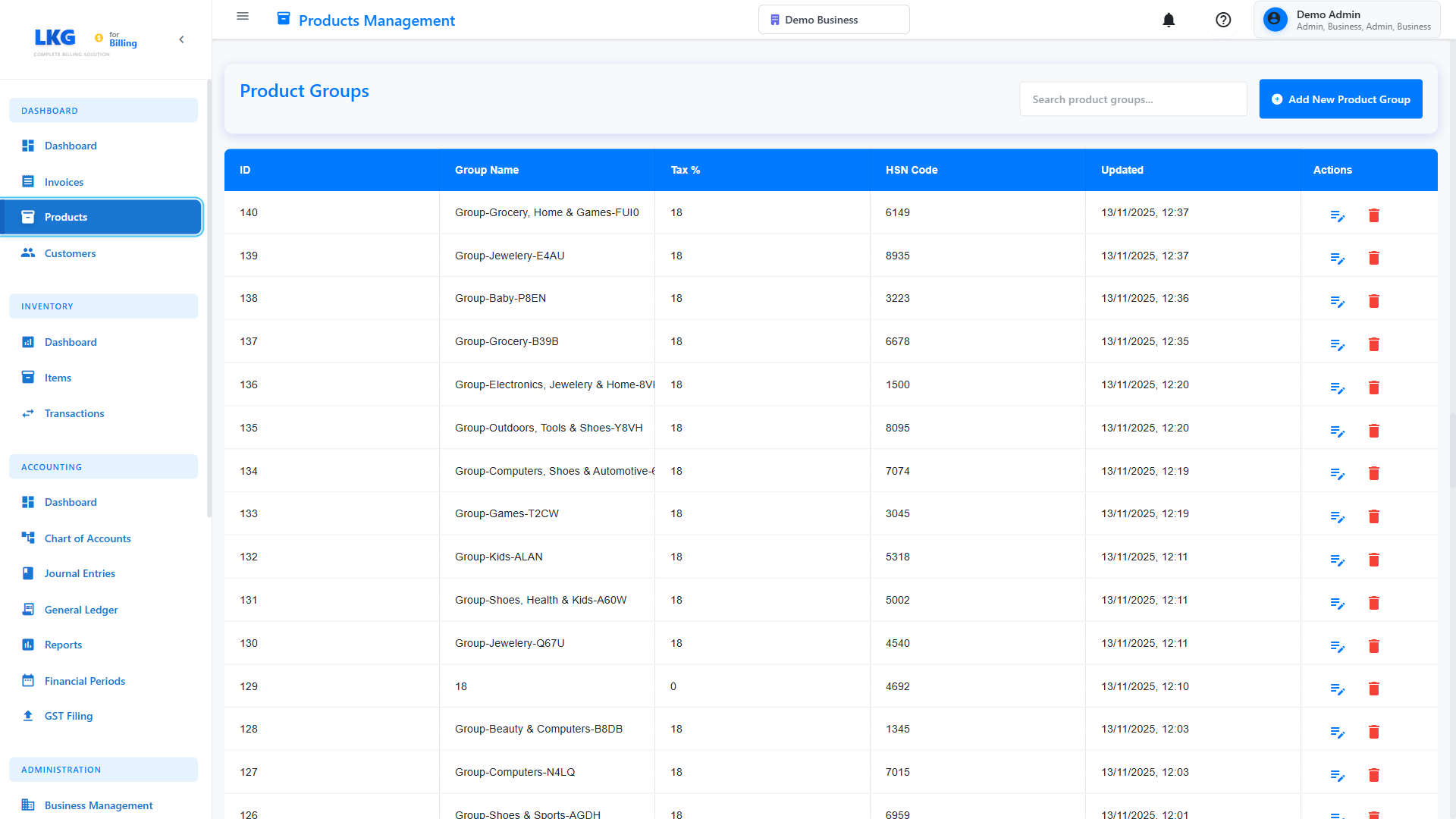
Creating a Product Group
Step 1: Access Product Groups
- Navigate to Products from the main menu
- Scroll down to the "Product Groups" section
- Click the "Add New Group" button
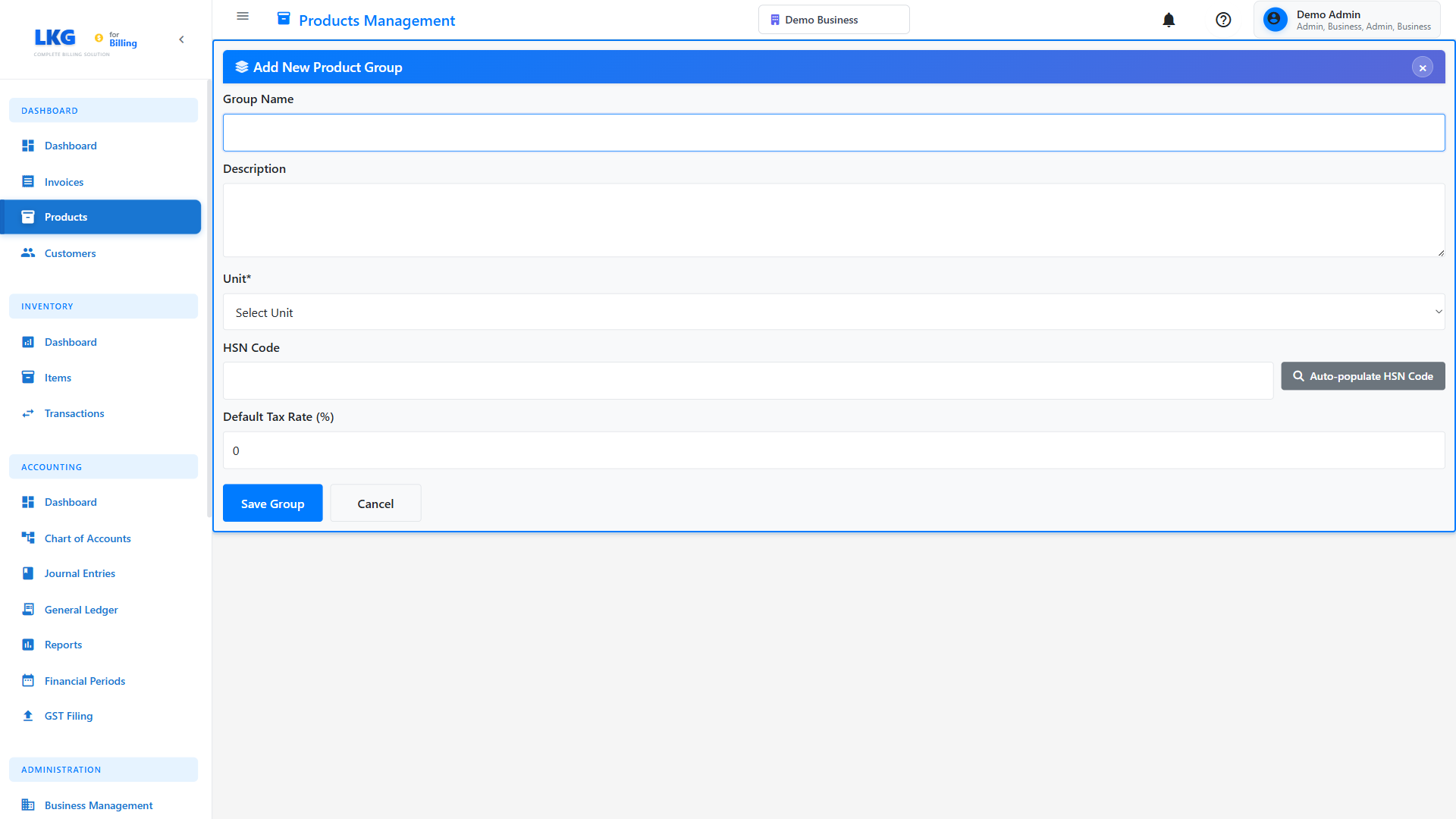
Step 2: Enter Group Information
Fill in the following details:
Group Name (Required)
The name of your product group. Examples:
- IT Services
- Software Licenses
- Hardware Products
- Consulting Services
- Training Programs
Description
A detailed description of what products belong in this group:
Information Technology Services and Consulting
Professional services including software development, system integration, and IT consulting
HSN/SAC Code
The tax classification code for goods (HSN) or services (SAC):
- HSN (Harmonized System of Nomenclature) - For goods
- SAC (Services Accounting Code) - For services
Example HSN Codes:
8471- Automatic data processing machines8517- Telephone sets and communication apparatus
Example SAC Codes:
998314- Information technology consulting services998315- Software design and development services
Default Tax Rate (%)
The standard tax rate that will be applied to all products in this group:
18%- Standard GST rate for most IT services12%- Reduced rate for certain products0%- For exports or exempt categories
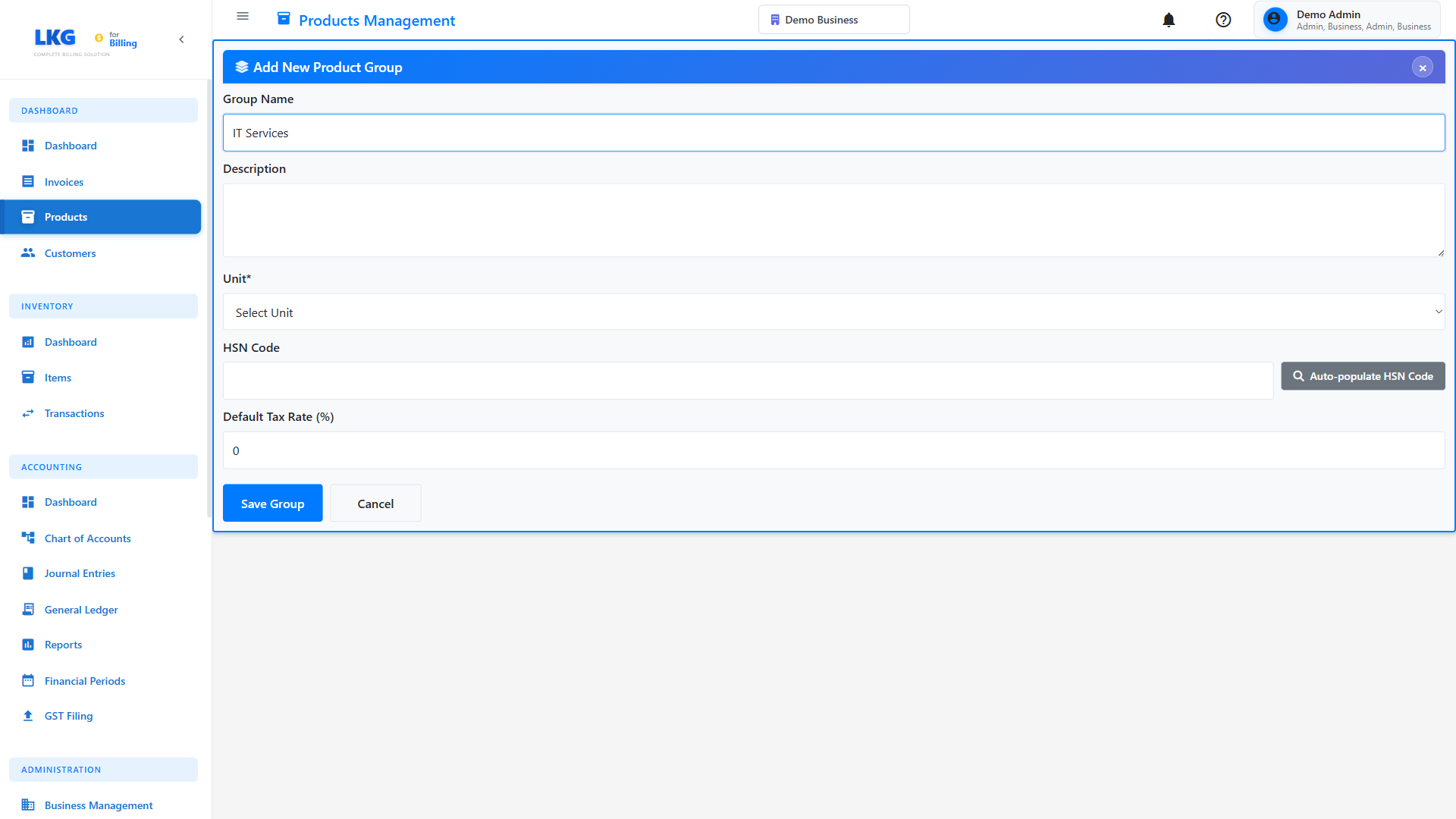
Step 3: Save the Group
- Review all entered information
- Click "Save Group" button
- The new group will appear in the Product Groups list
- You can now assign products to this group
Managing Product Groups
Editing a Product Group
- Locate the group in the Product Groups list
- Click the Edit icon (pencil) next to the group name
- Modify the details as needed
- Click "Save Group" to apply changes
Changes to a product group's tax rate will affect all products in that group unless a product has a custom tax rate override.
Deleting a Product Group
- Find the group in the Product Groups list
- Click the Delete icon (trash bin)
- Confirm the deletion
- You cannot delete a product group that has products assigned to it
- First reassign or remove all products from the group
- Then delete the empty group
Using Product Groups
Assigning Products to Groups
When creating or editing a product:
- Open the product form
- Select a group from the "Product Group" dropdown
- The product will inherit:
- HSN/SAC code (if not overridden)
- Default tax rate (if not overridden)
- Save the product
Filtering Products by Group
In the Products list:
- Use the search/filter options
- Select a specific product group
- View only products in that group
Best Practices
Group Organization
Do:
- ✅ Create groups based on business logic
- ✅ Use clear, descriptive group names
- ✅ Set accurate HSN/SAC codes
- ✅ Configure appropriate tax rates
- ✅ Group products with similar characteristics
Don't:
- ❌ Create too many narrow groups (causes confusion)
- ❌ Mix unrelated products in same group
- ❌ Leave group descriptions empty
- ❌ Use incorrect HSN/SAC codes
Naming Conventions
Use consistent naming for product groups:
Good Examples:
- IT Consulting Services
- Software Products - Enterprise
- Hardware - Networking Equipment
- Training & Certification

Poor Examples:
- Misc
- Other stuff
- Group 1
- Test
Tax Configuration
Set Default Tax Rates Carefully:
- 18% GST: Standard rate for most services and IT products
- 12% GST: Applicable to certain business services
- 5% GST: For specific goods/services (check regulations)
- 0% GST: For exports or exempt products
Always consult with your tax advisor or accountant to ensure correct HSN/SAC codes and tax rates are used for compliance with local tax regulations.
Common Use Cases
Example 1: IT Services Company
Product Groups:
1. Software Development Services (SAC: 998315, Tax: 18%)
2. IT Consulting (SAC: 998314, Tax: 18%)
3. Technical Support (SAC: 998316, Tax: 18%)
4. Training Services (SAC: 999293, Tax: 18%)
Example 2: Software Reseller
Product Groups:
1. Microsoft Products (HSN: 8523, Tax: 18%)
2. Adobe Software (HSN: 8523, Tax: 18%)
3. Antivirus Solutions (HSN: 8523, Tax: 18%)
4. Custom Software (HSN: 8523, Tax: 18%)
Example 3: Multi-Service Business
Product Groups:
1. Professional Services (SAC: 998311, Tax: 18%)
2. Products - Hardware (HSN: 8471, Tax: 18%)
3. Products - Software (HSN: 8523, Tax: 18%)
4. Maintenance Contracts (SAC: 998316, Tax: 18%)
Reporting Benefits
Product Groups enable better reporting:
Sales by Category
- Track revenue by product type
- Identify top-performing categories
- Analyze profit margins by group
Tax Reporting
- Simplified GST return filing
- Grouped by HSN/SAC codes
- Accurate tax calculations
Inventory Management
- Stock levels by category
- Reorder points by product type
- Procurement planning
Troubleshooting
Cannot Delete a Product Group
Problem: Delete button is disabled or shows error
Solution:
- Check if products are assigned to this group
- Navigate to Products list
- Filter by this product group
- Reassign products to different groups
- Try deleting again
Products Not Inheriting Group Settings
Problem: Product shows different tax rate than group
Solution:
- Edit the product
- Check if custom tax rate is set
- Clear custom tax rate to inherit from group
- Save product
HSN/SAC Code Issues
Problem: Invalid code format or validation error
Solution:
- Verify code format:
- HSN: 4, 6, or 8 digits
- SAC: 6 digits
- Check official HSN/SAC lists
- Ensure code is not all zeros
- Use the HSN/SAC selector for suggestions
Next Steps
- Create Products - Learn how to create products within groups
- Product Management - Manage your product catalog
- Invoice Creation - Create invoices with grouped products
Best Practice Tip: Set up your product groups before adding products. This ensures consistency and makes product creation faster with pre-configured defaults.