Editing and Deleting Inventory Items
Learn how to update inventory items and manage stock adjustments.
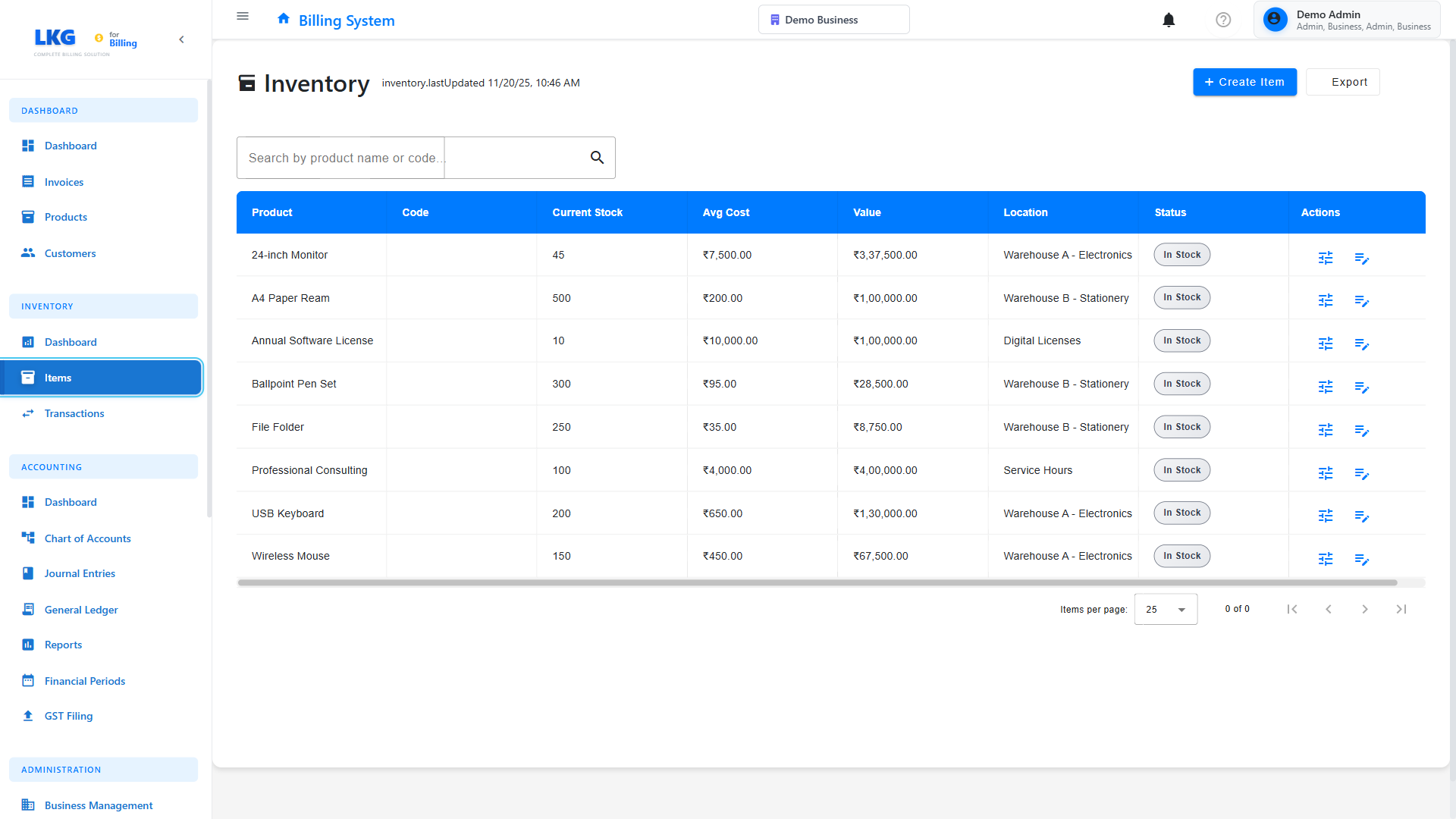
✏️ Editing Inventory Items
Accessing Inventory Edit
- Go to Inventory page
- Find the inventory item in the list
- Click Edit button (pencil icon)
- Or click Actions (⋮) → Edit
- Inventory item form opens with current data
Editable Fields
You can edit inventory item information:
Product Details:
- Product selection (can change to different product)
- Product name (read-only, from product master)
- Unit of Measurement (from product)
Stock Information:
- Current Stock Quantity (view only - use adjustments to change)
- Location/Warehouse
- Bin/Rack Location
- Lot Number / Batch Number
Thresholds:
- Low Stock Alert Level
- Reorder Point
- Reorder Quantity
- Maximum Stock Level
Tracking:
- Serial Numbers (for serialized items)
- Expiry Date (for perishable items)
- Manufacturing Date
Status:
- Active/Inactive
- Notes
Edit Restrictions
- Current stock cannot be edited directly in inventory item
- Use Stock Adjustments to increase/decrease stock
- This maintains proper audit trail
What You Can Edit:
✅ Location and bin information
✅ Reorder levels and thresholds
✅ Serial numbers and tracking info
✅ Active/Inactive status
✅ Notes
What You CANNOT Edit:
❌ Current stock quantity (use adjustments instead)
❌ Product history in invoices
❌ Past stock movement records
Changing Stock Quantity
To change stock quantity:
- Do NOT edit inventory item directly
- Go to Inventory → Adjustments
- Create a new adjustment:
- Increase Stock - For purchases, returns, corrections
- Decrease Stock - For damage, theft, corrections
- Enter reason and quantity
- Save adjustment
- Stock updated automatically
See Stock Adjustments for complete guide.
🗑️ Deleting Inventory Items
When You Can Delete
✅ Can Delete:
- Inventory items never used in invoices
- Inventory items with zero stock and no history
- Test inventory items
- Duplicate entries
❌ Cannot Delete:
- Items with current stock > 0
- Items used in finalized/paid invoices
- Items with adjustment history
- Items with transaction history
Delete Process
For eligible inventory items:
- Go to Inventory page
- Find the item to delete
- Ensure stock is zero
- Click Actions (⋮) → Delete
- Confirm deletion
- Item permanently removed
What Gets Deleted
When you delete an inventory item:
Deleted:
- Inventory tracking record
- Location information
- Reorder settings
- Notes and tags
NOT Deleted:
- Product master data (remains in Products)
- Invoice references (preserved on invoices)
- Stock adjustment history (if any - blocks deletion)
- Transaction records (blocks deletion)
Cascade Effects
Deleting Inventory Item:
- Does NOT delete the product
- Only removes inventory tracking
- Product still exists in Products list
- Can re-enable inventory tracking later
If Item Has Stock:
- Cannot delete until stock is zero
- Must adjust stock to zero first
- Or perform a stock write-off
If Item Has History:
- Cannot delete if adjustments exist
- Cannot delete if used in invoices
- Mark as Inactive instead
Alternative to Deletion
Marking as Inactive
Better alternative to deletion:
- Edit the inventory item
- Toggle Active Status to Inactive
- Item hidden from:
- Active inventory lists
- Stock adjustment screens
- Low stock alerts
- Still visible in:
- Historical reports
- Past invoices
- Can reactivate anytime
Benefits:
- Preserves all history
- Maintains audit trail
- Can restore if needed
- Compliant with accounting standards
Zero Out Stock
For discontinued items:
- Perform stock adjustment to bring stock to zero
- Document reason (discontinued, obsolete, etc.)
- Mark item as Inactive
- Keep for historical reference
Stock Adjustments vs. Item Deletion
Stock Adjustments
Use adjustments to:
- Increase stock (purchases, corrections)
- Decrease stock (damage, theft, loss)
- Correct counting errors
- Write off obsolete stock
Process:
- Go to Inventory → Adjustments
- Select New Adjustment
- Choose product
- Enter quantity change
- Enter reason
- Save adjustment
See Stock Adjustments for details.
Item Deletion
Use deletion to:
- Remove inventory tracking for a product
- Clean up test data
- Remove duplicate entries
- Stop tracking a product
Not Used For:
- Reducing stock to zero (use adjustment instead)
- Removing from invoices (cannot do this)
- Correcting stock errors (use adjustment instead)
Common Scenarios
Scenario 1: Stop Tracking a Product
Problem: Product no longer needs inventory tracking.
Solution:
- Adjust stock to zero (if any stock exists)
- Document reason in adjustment
- Delete the inventory item
- Product still exists in Products, just not tracked for inventory
Scenario 2: Duplicate Inventory Item
Problem: Same product tracked twice in inventory.
Solution:
- Identify which record is correct
- Check which has transaction history
- If duplicate has NO history: Delete it
- If both have history:
- Consolidate stock using adjustments
- Mark duplicate as inactive
- Add note: "Duplicate of [Product Name]"
Scenario 3: Wrong Product Linked
Problem: Inventory item linked to wrong product.
Solution:
- If no history: Delete inventory item, recreate with correct product
- If has history:
- Cannot easily change product linkage
- Mark as inactive
- Create new inventory item with correct product
- Add notes to both explaining the issue
Scenario 4: Obsolete Inventory
Problem: Product obsolete, need to write off stock.
Solution:
- Create stock adjustment: "Write-off - Obsolete"
- Reduce stock to zero
- Mark inventory item as Inactive
- Keep for audit/historical records
- Do NOT delete (preserves history)
Scenario 5: Test Inventory Data
Problem: Test inventory items created during setup.
Solution:
- Ensure items have zero stock
- Ensure no adjustment history
- Delete the inventory items
- Products can remain in Products list or be deleted separately
Editing Stock Locations
Changing Warehouse
To move inventory to different location:
Option 1: Edit Location
- Edit inventory item
- Change Location/Warehouse field
- Save changes
- Stock now tracked in new location
Option 2: Transfer (if feature available)
- Create stock transfer
- From: Current location
- To: New location
- Quantity: Amount to transfer
- Complete transfer
- Stock updated in both locations
Multi-Location Tracking
If system supports multiple locations:
- Each location has separate inventory item
- Product can have inventory in multiple warehouses
- Total stock = sum of all locations
- Edit each location separately
Reorder Levels
Editing Thresholds
Keep inventory properly stocked:
Low Stock Alert Level:
- System alerts when stock falls below this level
- Edit based on consumption rate
- Receive email/notification when low
Reorder Point:
- When to place new order
- Usually slightly higher than low stock level
- Account for lead time
Reorder Quantity:
- How much to order when reordering
- Based on supplier minimums, usage rate
- Economic order quantity
Maximum Stock:
- Upper limit to avoid overstocking
- Based on storage capacity, shelf life
Updating Settings
- Edit inventory item
- Adjust threshold values
- Save changes
- System uses new thresholds immediately
Serial Number Tracking
For Serialized Items
Items like electronics, equipment:
Adding Serial Numbers:
- Edit inventory item
- Go to Serial Numbers section
- Add serial numbers (comma-separated or one per line)
- System tracks each serial individually
- When sold, specific serial marked as sold
Editing Serial Numbers:
- Can add new serials
- Cannot delete serials used in invoices
- Can mark serials as damaged/returned
Deleting Item with Serials:
- Cannot delete if serials exist
- Must clear all serials first (if no sales)
- Or mark item as inactive (if serials sold)
Batch/Lot Number Tracking
For Batched Items
Items like food, chemicals:
Editing Batch Info:
- Edit inventory item
- Update Lot/Batch Number
- Update Manufacturing Date
- Update Expiry Date
- Save changes
Multiple Batches:
- If system supports, track multiple batches per product
- Each batch has own expiry, quantity
- Edit each batch separately
- FIFO/FEFO rules may apply
Deleting Item with Batches:
- Cannot delete if batches have history
- Must deplete or write off all batches
- Mark as inactive instead
Data Integrity
Related Records Impact
Before deleting inventory item:
Stock Adjustments:
- Any adjustments prevent deletion
- Must have zero history to delete
Invoices:
- Product on finalized invoices prevents deletion
- Inventory tracking preserved on invoices
Reports:
- Inventory reports reference the item
- Deletion creates gaps in historical data
Alerts:
- Low stock alerts based on item
- Deletion removes from monitoring
Audit Trail
Inventory changes are logged:
Edit Log Includes:
- Who edited (user name)
- When edited (date and time)
- What changed (field names and values)
- Old and new values
Example:
Inventory Item Updated
Date: Nov 20, 2024 4:00 PM
User: Admin User
Product: Wireless Mouse (SKU: WM-001)
Changes:
  - Reorder Point: 20 → 30
  - Low Stock Alert: 10 → 15
  - Location: Warehouse A → Warehouse B
Deletion Log:
Inventory Item Deleted
Date: Nov 20, 2024 4:15 PM
User: Admin User
Product: Test Product (SKU: TEST-001)
Stock at Deletion: 0
Reason: Test data cleanup
Bulk Operations
Bulk Edit Inventory
Update multiple items:
- Go to Inventory page
- Select items using checkboxes
- Click Bulk Actions → Edit Selected
- Change common fields:
- Location
- Reorder settings
- Active/Inactive status
- Click Apply to All
Bulk Adjustments
Adjust stock for multiple items:
- Go to Inventory → Adjustments
- Select Bulk Adjustment
- Choose multiple products
- Enter quantities for each
- Enter common reason
- Save bulk adjustment
- All stocks updated at once
Bulk Activate/Deactivate
Quick status changes:
- Select inventory items
- Click Bulk Actions → Activate or Deactivate
- All selected items updated
Best Practices
Before Editing
- Verify item - Ensure editing correct product
- Check stock - Review current stock levels
- Document changes - Note why you're editing
- Use adjustments - Never edit stock quantity directly
Before Deleting
- Verify zero stock - Ensure no stock exists
- Check history - Ensure no adjustments or invoices
- Export data - Save info if needed for records
- Use inactive - Safer than deletion
Inventory Maintenance
Regular tasks:
- Daily: Monitor low stock alerts
- Weekly: Review reorder points
- Monthly: Perform stock takes, verify counts
- Quarterly: Clean up inactive items
- Annually: Review and archive obsolete items
Permissions
Who Can Edit/Delete
Admin Users:
- Edit all inventory items
- Delete items (if eligible)
- Bulk operations
- Stock adjustments
Inventory Managers:
- Edit inventory items
- Stock adjustments
- Cannot delete items with history
Regular Users:
- View inventory
- Limited edit access
- Cannot perform adjustments
Read-Only Users:
- View only
- No edit or delete permissions
Troubleshooting
Cannot Edit Inventory Item
Problem: Edit button grayed out.
Solutions:
- Check permissions
- Verify item not locked by another user
- Refresh the page
- Contact administrator
Cannot Delete Inventory Item
Problem: Delete option fails or unavailable.
Reasons:
- Item has stock > 0
- Item has adjustment history
- Item used in invoices
- Insufficient permissions
Solution:
- Adjust stock to zero first
- Or mark as Inactive instead of deleting
Stock Not Updating
Problem: Edited item but stock didn't change.
Explanation:
- Stock quantity cannot be edited directly
- Must use Stock Adjustments to change quantity
- This is by design for audit purposes
Solution: Use Inventory → Adjustments to change stock.
Changes Not Saving
Problem: Edits not persisting.
Solutions:
- Check for validation errors
- Ensure required fields filled
- Verify numbers are valid
- Check permissions
- Refresh and try again
Next Steps
- Inventory Overview - Understanding inventory management
- Stock Adjustments - Adjusting stock quantities
- Reports - Inventory reports and analysis
Important: Never edit stock quantities directly. Always use Stock Adjustments to increase or decrease inventory. This maintains a proper audit trail and ensures compliance with accounting standards.