Inventory Transactions
Track all stock movements and maintain a complete audit trail of your inventory changes.
What are Inventory Transactions?
Every time stock levels change, a transaction is automatically created to record:
- What changed - Product and quantity
- When it changed - Date and time
- Why it changed - Transaction type and reason
- Who changed it - User who made the change
- Reference - Related document or adjustment ID
Transaction Types
1. Purchase (Stock In) 📥
When: New stock is received
Automatically created when:
- Recording a purchase order receipt
- Marking supplier invoice as received
Details recorded:
- Purchase order number
- Supplier reference
- Quantity received
- Unit cost
- Total value
Example:
Type: Purchase
Product: Laptop - Dell Inspiron
Quantity: +10 units
Reference: PO-2024-001
Cost: ₹45,000 × 10 = ₹4,50,000
User: admin@company.com
Date: 20 Nov 2025, 10:30 AM
2. Sale (Stock Out) 📤
When: Products are sold to customers
Automatically created when:
- Invoice is created with products
- Sales order is fulfilled
- Delivery is marked as shipped
Details recorded:
- Invoice number
- Customer name
- Quantity sold
- Selling price
- Profit margin
Example:
Type: Sale
Product: Laptop - Dell Inspiron
Quantity: -2 units
Reference: INV-2024-0523
Selling Price: ₹52,000 × 2 = ₹1,04,000
Cost: ₹45,000 × 2 = ₹90,000
Profit: ₹14,000
User: sales@company.com
Date: 20 Nov 2025, 2:15 PM
3. Adjustment (Manual Correction) ⚙️
When: Manual stock corrections are needed
Reasons for adjustments:
- Physical count differences
- Damaged goods
- Lost items
- Found items
- Data entry errors
- Quality control rejections
Example:
Type: Adjustment
Product: Laptop - Dell Inspiron
Quantity: -1 unit
Reason: Damaged during shipping
Notes: "Screen cracked, unit unsellable"
User: warehouse@company.com
Date: 20 Nov 2025, 4:45 PM
4. Return (Customer/Supplier Return) 🔄
When: Products are returned
Customer Returns (Stock In):
Type: Return (In)
Product: Laptop - Dell Inspiron
Quantity: +1 unit
Reference: RET-CUS-2024-012
Reason: Customer return - defective
Notes: "Keyboard issue, replaced"
Supplier Returns (Stock Out):
Type: Return (Out)
Product: Laptop - Dell Inspiron (Defective)
Quantity: -1 unit
Reference: RET-SUP-2024-005
Reason: Returning defective unit to supplier
5. Transfer (Location Change) 🚚
When: Moving stock between locations
Example:
Type: Transfer
Product: Laptop - Dell Inspiron
Quantity: -5 units (from Warehouse A)
        +5 units (to Store B)
Reference: TRF-2024-089
Notes: "Restocking retail location"
Viewing Transactions
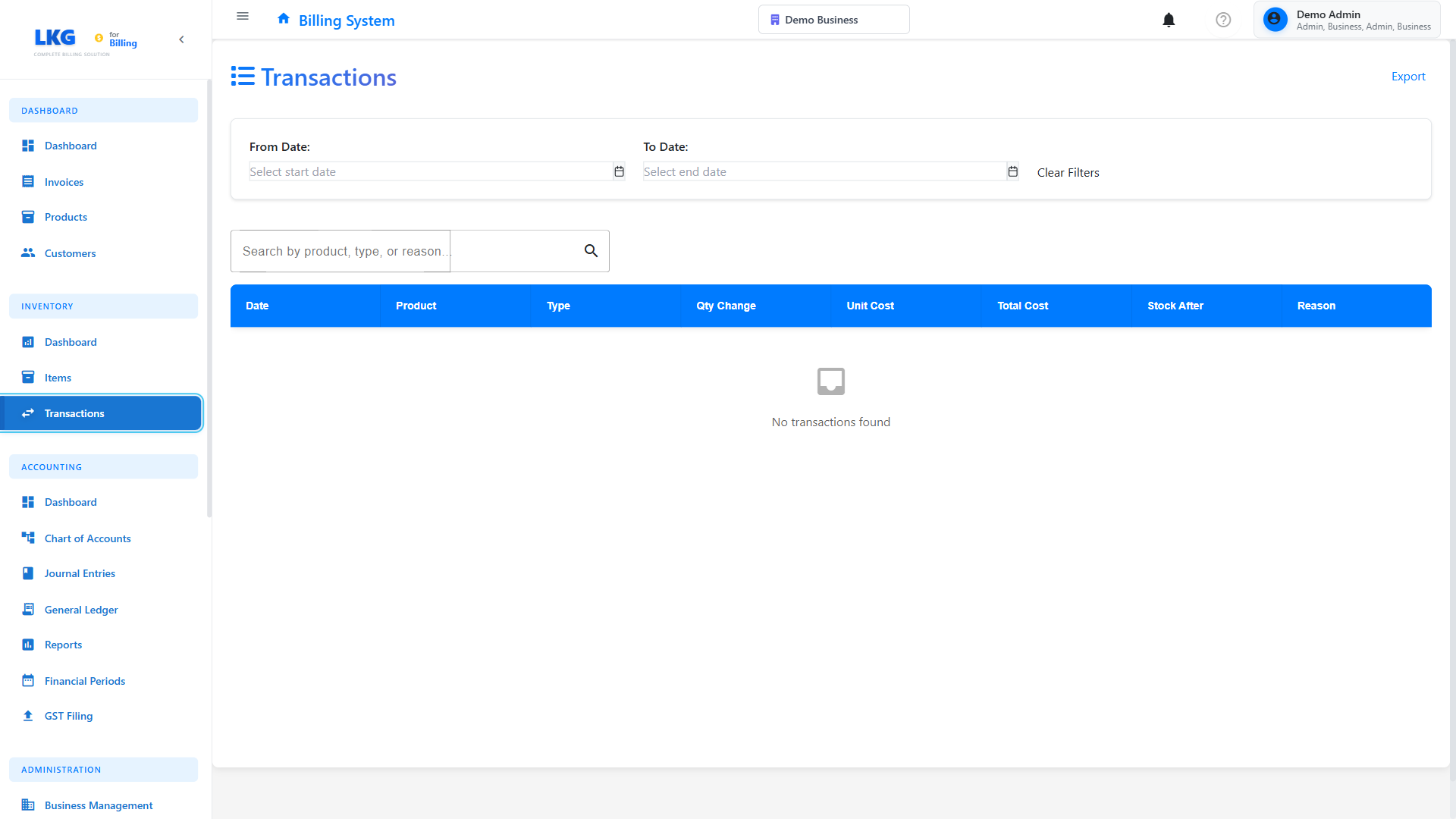
Transaction List
The transactions page shows:
| Column | Description |
|---|---|
| Date/Time | When the transaction occurred |
| Product | Product name and SKU |
| Type | Transaction type icon and label |
| Quantity | Amount added (+) or removed (-) |
| Reference | Related document number |
| User | Who made the change |
| Stock After | Resulting stock level |
Filtering Transactions
Filter by:
Date Range:
- Today
- Last 7 days
- Last 30 days
- Custom date range
Transaction Type:
- All transactions
- Purchases only
- Sales only
- Adjustments only
- Returns only
- Transfers only
Product:
- All products
- Specific product
- Product category
- Low stock items
User:
- All users
- Specific user
- My transactions only
Transaction Details
Click any transaction to view complete details:
Basic Information
- Transaction ID
- Date and time (precise timestamp)
- Transaction type
- Status (completed, pending, cancelled)
Product Information
- Product name and SKU
- Product category
- Current stock level
- Stock after this transaction
Quantity Information
- Quantity changed (+ or -)
- Unit of measure
- Value per unit
- Total transaction value
Reference Information
- Reference document (invoice, PO, etc.)
- Reference number
- Link to source document
User Information
- User who created transaction
- User role
- IP address (for audit)
- Device/location
Additional Notes
- Reason for transaction
- Comments/notes
- Approvals (if required)
- Attachments
Automatic Transaction Creation
From Invoices
When you create an invoice with products:
-
Invoice Saved as Draft
- ✅ No inventory transaction created
- ❓ Stock not affected yet
-
Invoice Finalized
- ✅ Sale transaction created automatically
- 📤 Stock quantity reduced
- 📊 Transaction recorded
-
Invoice Cancelled
- ✅ Reversal transaction created
- 📥 Stock quantity restored
- 📝 Both transactions visible in history
From Purchase Orders
When receiving stock:
-
PO Created
- No inventory impact
-
Goods Received
- Purchase transaction created
- Stock increased
- Unit cost updated
-
Partial Receipts
- Multiple transactions created
- One per receipt
- Full audit trail
Manual Stock Adjustments
Making an Adjustment
- Navigate to Inventory → Items
- Find the product
- Click "Adjust Stock" button
- Enter adjustment details:
Adjustment Form:
Product: [Auto-filled]
Current Stock: [Display only]

Adjustment Type:
○ Add Stock (+)
○ Remove Stock (-)
○ Set Quantity (=)

Quantity: [Enter amount]

Reason:
○ Damaged
○ Lost/Stolen
○ Found/Discovered
○ Physical Count Correction
○ Quality Control
○ Other

Notes: [Required for Other]
- Click "Save Adjustment"
- Transaction is created immediately
Adjustment Examples
Example 1: Damaged Goods
Type: Adjustment (Remove)
Quantity: -3 units
Reason: Damaged
Notes: "Water damage from roof leak"
Stock: 50 → 47 units
Example 2: Physical Count
Type: Adjustment (Set)
New Quantity: 48 units
Current: 50 units
Difference: -2 units
Reason: Physical Count Correction
Notes: "Annual inventory audit"
Example 3: Found Stock
Type: Adjustment (Add)
Quantity: +5 units
Reason: Found/Discovered
Notes: "Found in back storage area"
Stock: 47 → 52 units
Transaction History & Audit Trail
Complete Audit Trail
Every transaction provides:
- Who - User identification
- What - Product and quantity
- When - Precise timestamp
- Why - Reason and reference
- Result - Before and after stock levels
Audit Reports
Generate reports for:
Stock Movement Report
- All transactions for date range
- By product or category
- By transaction type
User Activity Report
- All transactions by specific user
- Adjustments made
- Time period analysis
Variance Report
- Compare actual vs expected
- Identify discrepancies
- Shrinkage analysis
Best Practices
Record Keeping
Do:
- ✅ Add detailed notes to manual adjustments
- ✅ Use correct transaction types
- ✅ Include reference numbers
- ✅ Document reasons clearly
Don't:
- ❌ Use generic reasons like "Other"
- ❌ Skip notes on adjustments
- ❌ Make adjustments without investigation
- ❌ Delete transactions (contact admin)
Regular Reviews
Daily:
- Review today's transactions
- Verify sales are recorded
- Check for unusual adjustments
Weekly:
- Analyze transaction patterns
- Identify high-movement items
- Review user activity
Monthly:
- Generate variance reports
- Investigate discrepancies
- Reconcile with financial records
Quarterly:
- Audit trail review
- Physical inventory count
- Process improvement review
Investigating Discrepancies
When stock doesn't match expectations:
-
Check Recent Transactions
- Look at last 10 transactions
- Verify quantities
- Check transaction types
-
Review Related Documents
- Open linked invoices
- Check purchase orders
- Verify delivery notes
-
Physical Verification
- Count actual stock
- Check storage locations
- Look for misplaced items
-
Make Correction
- Create adjustment transaction
- Document investigation findings
- Implement preventive measures
Troubleshooting
Transaction Not Created
Problem: Sale completed but no transaction
Solutions:
- Check if invoice is finalized
- Verify product has inventory item
- Check inventory tracking is enabled
- Contact system administrator
Incorrect Quantity
Problem: Transaction shows wrong quantity
Solutions:
- Create correcting adjustment
- Document original error
- Review process to prevent recurrence
- Don't try to delete the transaction
Missing Reference
Problem: Transaction has no reference number
Solutions:
- Manual adjustments may not have references
- Check transaction notes for details
- Contact user who created transaction
- Add notes if information available
Next Steps
- Stock Adjustments - Learn adjustment procedures in detail
- Inventory Items - Manage your inventory
- Dashboard Overview - Monitor inventory health
Security Note: Transaction history is immutable. Corrections are made with new transactions, not by editing or deleting existing ones. This ensures complete audit compliance.