Draft Invoices
Learn how to work with draft invoices, including creating, editing, and finalizing them.
📝 What are Draft Invoices?
Draft invoices are incomplete or work-in-progress invoices that haven't been finalized or sent to customers. They allow you to:
- Save invoices while still working on them
- Return later to complete the invoice
- Review and verify details before sending
- Make changes without affecting sent invoices
Draft invoices are not included in financial reports or revenue calculations until they are finalized.
Creating a Draft Invoice
Automatic Draft Creation
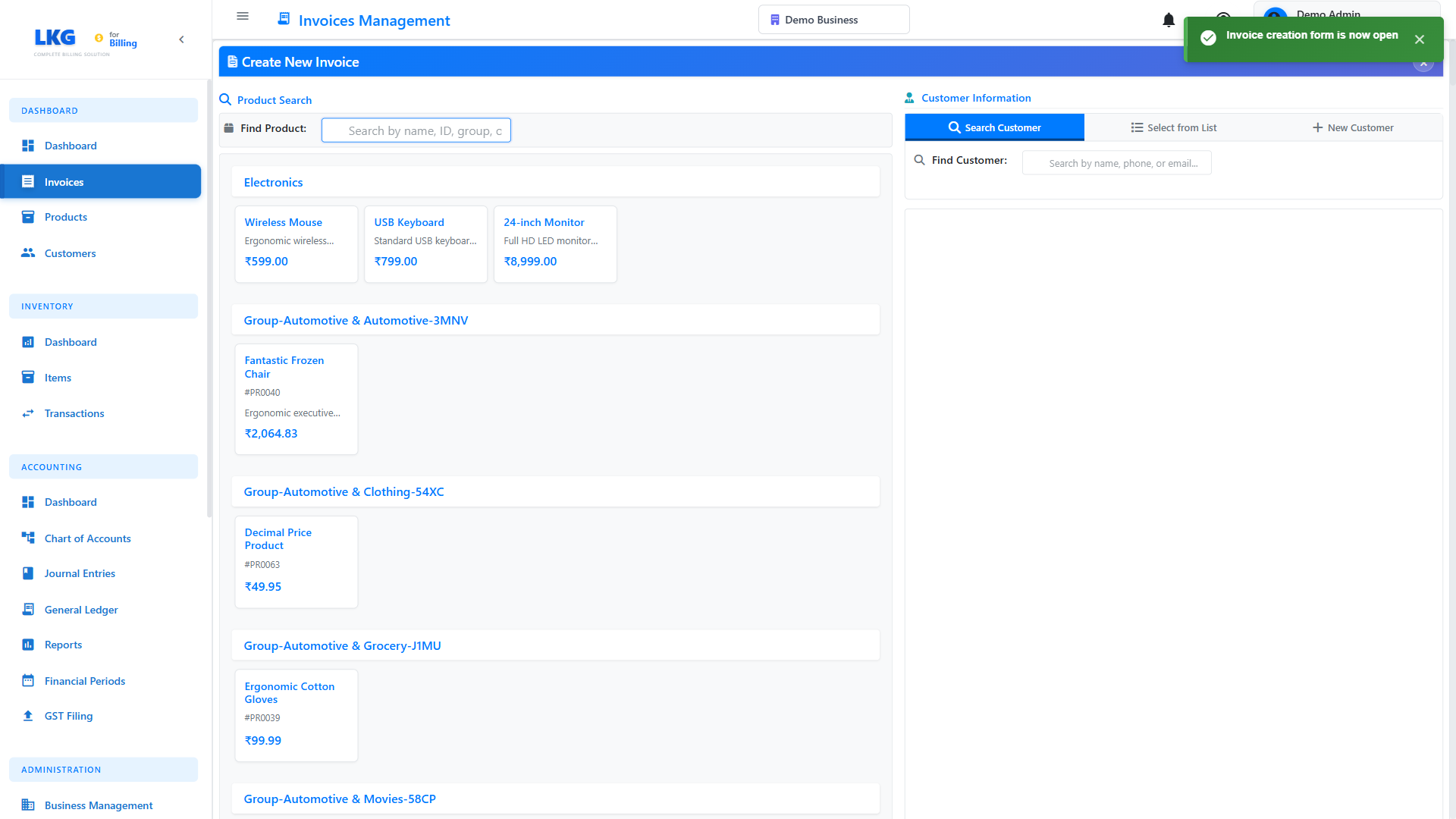
When you start creating a new invoice, it automatically begins as a draft:
- Click Invoices in the sidebar
- Click New Invoice or Create button
- Start filling in invoice details
- The invoice is automatically saved as a draft
Manual Draft Save
While creating an invoice, you can explicitly save it as a draft:
- Fill in the invoice details (customer, products, etc.)
- Click Save as Draft button
- The invoice is saved and you're returned to the invoice list
Viewing Draft Invoices
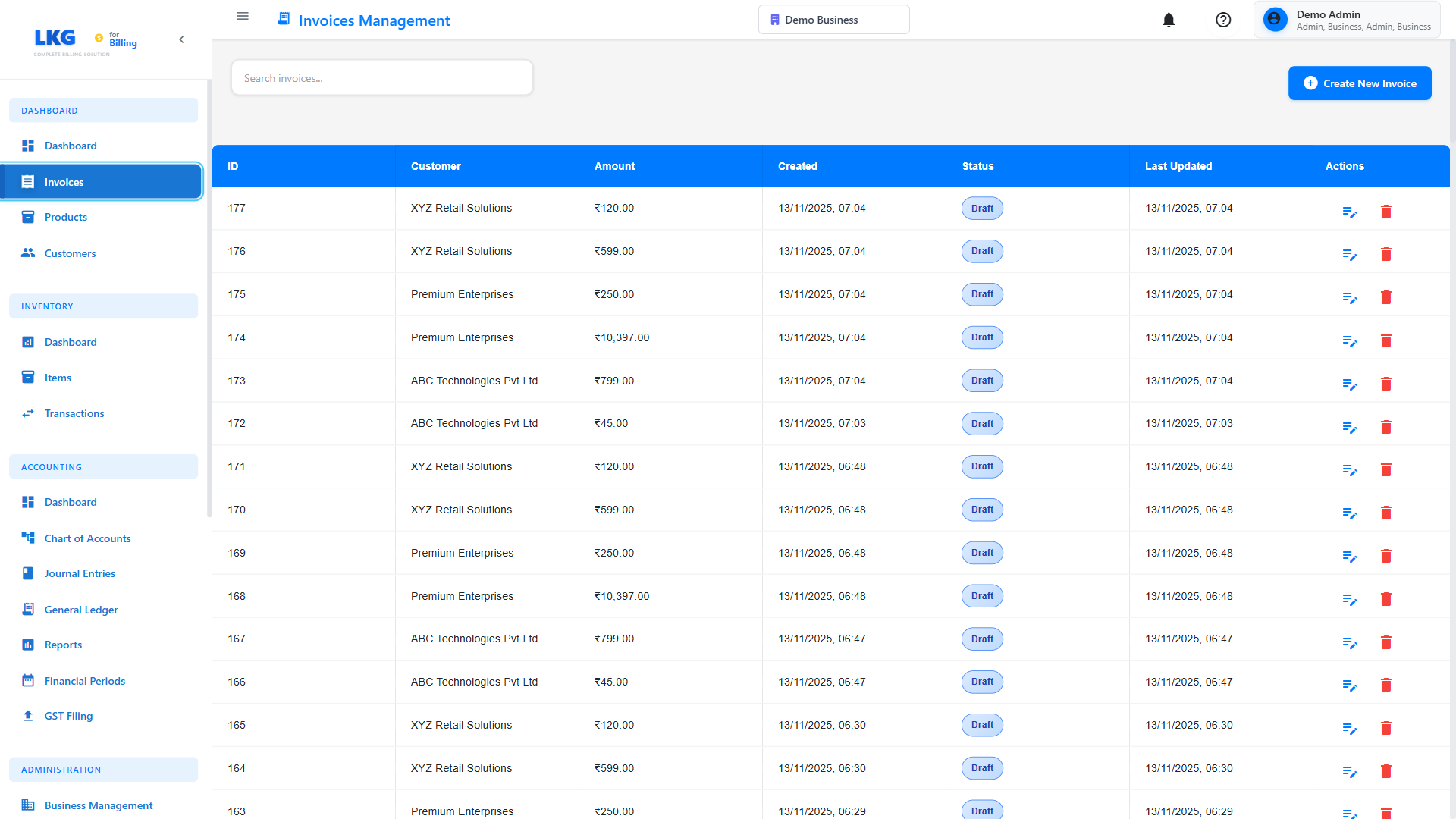
Filtering for Drafts
- Go to Invoices page
- Click the Status filter dropdown
- Select Draft
- Only draft invoices will be displayed
Draft Invoice Indicators
Draft invoices are marked with:
- Draft badge or label in gray or muted color
- Different icon (usually a pencil or document icon)
- Separate section in the invoice list
- Excluded from invoice totals/reports
Editing Draft Invoices
Draft invoices can be edited freely without restrictions.
Edit Process
- Find the draft invoice in the invoice list
- Click the Edit button (pencil icon) or three-dots menu
- Select Edit from the actions menu
- Make your changes to:
- Customer information
- Invoice date or due date
- Products/services and quantities
- Prices and discounts
- Tax settings
- Payment terms
- Notes or additional details
- Click Save as Draft to keep it in draft status
- Or click Finalize to mark it as ready
What You Can Edit
In draft invoices, you can change:
✅ Customer - Switch to a different customer
✅ Products/Services - Add, remove, or modify items
✅ Quantities - Adjust quantities
✅ Prices - Change unit prices
✅ Discounts - Add or modify discounts
✅ Tax Rates - Change tax settings
✅ Dates - Invoice date, due date
✅ Payment Terms - Net 30, Net 60, etc.
✅ Notes - Add or edit notes
Finalizing Draft Invoices
When your draft invoice is ready, you can finalize it.
Finalize Process
- Open the draft invoice for editing
- Review all details carefully
- Click Finalize Invoice or Mark as Final button
- The invoice status changes from Draft to Pending or Sent
- Invoice number is locked (if using auto-numbering)
Once finalized, invoices have editing restrictions to maintain audit trails. You may not be able to change certain fields.
Auto-Finalize on Send
Sending an invoice automatically finalizes it:
- Open the draft invoice
- Click Send Invoice button
- Enter customer email
- Click Send
- Invoice is automatically finalized and status changes to Sent
Deleting Draft Invoices
Draft invoices can be deleted completely since they haven't been sent to customers.
Delete Process
- Go to Invoices list
- Find the draft invoice
- Click the three-dots menu (⋮) or Actions button
- Select Delete from the menu
- Confirm deletion in the dialog box
- The draft invoice is permanently removed
Since drafts haven't been sent to customers and aren't included in reports, deleting them won't affect your accounting records.
Bulk Delete Drafts
To delete multiple draft invoices at once:
- Filter invoices to show only Drafts
- Select checkboxes next to the invoices you want to delete
- Click Bulk Actions or Delete Selected
- Confirm the deletion
- All selected drafts are removed
Converting Drafts to Final Invoices
Standard Conversion
- Edit the draft invoice
- Verify all information is complete and accurate
- Click Finalize button
- Invoice moves from Draft to Pending status
Send and Finalize
- Open the draft invoice
- Click Send to Customer button
- Draft is automatically finalized
- Invoice is emailed to customer
- Status changes to Sent
Best Practices
Use Drafts For
✅ Complex invoices - Save progress on invoices with many line items
✅ Pending information - When waiting for customer details or pricing confirmation
✅ Template creation - Create draft templates for recurring services
✅ Month-end processing - Prepare multiple invoices in advance
✅ Review process - Save drafts for manager approval before sending
Don't Use Drafts For
❌ Quick invoices - For simple invoices, create and send immediately
❌ Long-term storage - Don't leave drafts unused for months
❌ Sent invoices - Once sent, it's no longer a draft
Draft Management Tips
- Review regularly - Check draft invoices weekly
- Clean up old drafts - Delete or finalize drafts older than 30 days
- Use clear naming - Add notes to identify what the draft is for
- Set reminders - Note when you need to return to complete a draft
- Bulk process - Finalize multiple drafts at month-end
Common Scenarios
Scenario 1: Waiting for Pricing Confirmation
Problem: You need to invoice a customer but are waiting for final pricing.
Solution:
- Create a draft invoice with customer and products
- Enter estimated prices with a note "Pending final pricing"
- Save as draft
- When pricing is confirmed, edit the draft
- Update prices and finalize
Scenario 2: Creating Template for Recurring Services
Problem: You invoice the same customer monthly for the same services.
Solution:
- Create a draft invoice with all standard items
- Add customer, products, and quantities
- Save as draft with note "Monthly template - DO NOT SEND"
- Each month, duplicate this draft
- Update dates and amounts
- Finalize and send
Scenario 3: Batch Invoicing
Problem: You need to create 20 invoices at month-end.
Solution:
- Create all 20 invoices as drafts during the month
- Add customer and product details as work is completed
- At month-end, review all drafts
- Finalize or send all invoices at once
- Clean workflow without rushing
Draft Invoice Limitations
What Drafts Cannot Do
❌ Cannot be paid - Customers cannot pay draft invoices
❌ Not in reports - Excluded from revenue and accounting reports
❌ No payment reminders - System won't send payment reminders for drafts
❌ Not tracked for overdue - No overdue status since they're not active
❌ No customer visibility - Customers cannot see draft invoices in portal
When Drafts Expire
Check your system settings for draft expiration rules:
- Some systems auto-delete drafts after 90 days
- Others mark old drafts for review
- Configure in Settings → Invoice Settings
Troubleshooting
Cannot Find Draft Invoice
Problem: Created a draft but can't find it.
Solutions:
- Check the Status filter is set to show Drafts
- Search by customer name or invoice number
- Check if it was accidentally deleted
- Look in the All Invoices view without filters
Draft Won't Save
Problem: Changes to draft invoice aren't saving.
Solutions:
- Ensure required fields are filled (customer, at least one product)
- Check for validation errors (highlighted in red)
- Verify you have permission to create/edit invoices
- Try refreshing the page and re-entering changes
Cannot Delete Draft
Problem: Delete option is grayed out for draft invoice.
Solutions:
- Verify the invoice is truly in Draft status
- Check if you have delete permissions
- Ensure the draft isn't locked by another user
- Try from the edit screen instead of the list view
Next Steps
- Editing Invoices - Learn about editing finalized invoices
- Managing Invoice Payments - Record payments against invoices
- Deleting Invoices - Understand invoice deletion rules
- Invoice Overview - Back to invoice management basics
Pro Tip: Use drafts liberally! It's better to save a work-in-progress invoice as a draft than to rush and send an incorrect invoice to a customer.