Editing Invoices
Learn how to edit invoices at different stages and understand the editing restrictions.
📝 Editing Rules by Invoice Status
Different invoice statuses have different editing capabilities to maintain data integrity and audit trails.
Draft Invoices
Full Editing Access ✅
- Change customer
- Add/remove/modify products
- Change quantities and prices
- Adjust discounts and taxes
- Modify dates
- Update payment terms
- Edit all fields freely
Finalized/Sent Invoices
Limited Editing ⚠️
- Cannot change customer (in most cases)
- Cannot modify product quantities or prices
- Can add internal notes
- Can update payment status
- Can record payments
- May be able to adjust due date (system dependent)
Paid Invoices
Very Limited Editing 🔒
- Cannot change financial amounts
- Can add payment notes
- Can update payment method
- Can add credit notes (if overpaid)
- Most fields are locked
Limiting edits on finalized invoices maintains legal and accounting compliance. Use credit notes for corrections.
Editing Draft Invoices
Access Draft for Editing
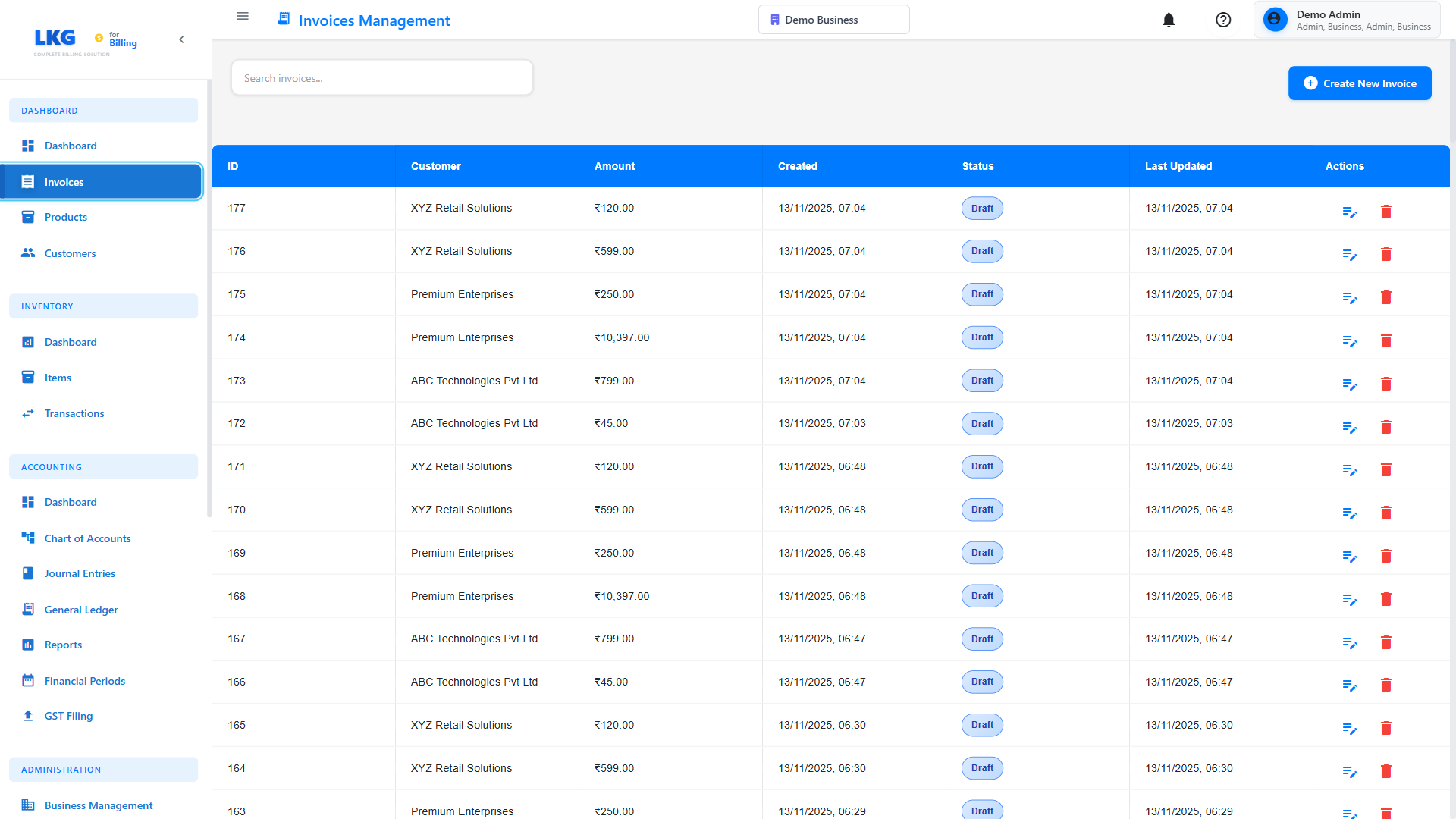
- Go to Invoices page
- Filter by Draft status
- Find the invoice you want to edit
- Click the Edit button (pencil icon) or three-dots menu
- Select Edit Invoice
Edit Invoice Form
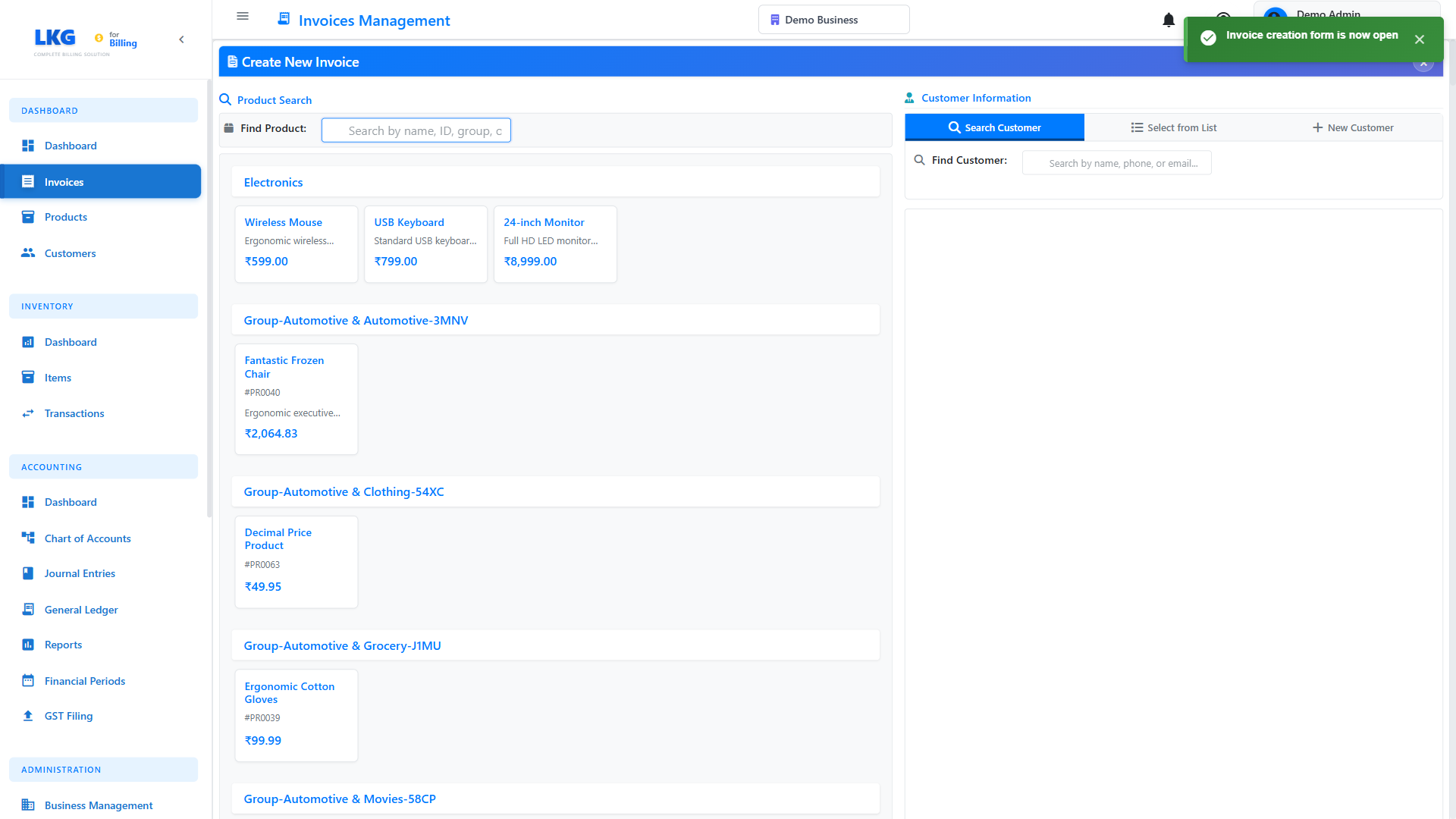
The invoice edit form looks similar to the create form:
Fields You Can Edit
Header Information:
- Customer (select different customer)
- Invoice Date
- Due Date
- Invoice Number (before finalization)
- Reference/PO Number
Line Items:
- Add new products/services
- Remove existing line items
- Change quantities
- Update unit prices
- Modify descriptions
Financial:
- Add or change discounts
- Adjust tax rates
- Modify tax settings
- Change payment terms
Additional:
- Invoice notes (visible to customer)
- Internal notes (for your reference)
- Terms and conditions
- Footer text
Saving Your Changes
After making edits:
- Save as Draft - Keep in draft status for more changes
- Finalize Invoice - Mark as complete and ready to send
- Save & Send - Finalize and email to customer immediately
- Cancel - Discard changes and return to list
Editing Finalized Invoices
Access Finalized Invoice
- Go to Invoices page
- Find the finalized invoice (not draft, not paid)
- Click Actions menu (⋮)
- Select Edit Invoice
Limited Edit Capabilities
For finalized invoices, you typically can only:
✅ Update Due Date - Extend payment deadline
✅ Add Notes - Internal or customer-facing notes
✅ Attach Documents - Supporting documents
✅ Update Tags/Categories - For organization
✅ Record Payments - Mark as partially or fully paid
❌ Cannot Change customer, amounts, products, or quantities
Making Corrections to Finalized Invoices
If you need to correct a finalized invoice:
Option 1: Create Credit Note
For partial corrections:
- Create a credit note for the incorrect amount
- Create a new invoice or adjustment
- Link the credit note to original invoice
Option 2: Admin Override (if available)
Some systems allow admin users to unlock invoices:
- Contact system administrator
- Request invoice unlock
- Make necessary changes
- Document the reason for changes
- Re-lock the invoice
Always document why you're changing a finalized invoice for audit purposes.
Editing Paid Invoices
Very Limited Access
For paid invoices, editing is extremely restricted:
✅ Can Edit:
- Payment method details
- Payment reference numbers
- Internal notes
- Tags and categories
❌ Cannot Edit:
- Invoice amounts
- Products or services
- Customer information
- Payment dates (in most cases)
- Paid amount
Recording Additional Payments
If a customer makes additional payments:
- Open the paid invoice
- Click Add Payment
- Enter additional payment details
- Invoice may show as "Overpaid"
- System may prompt to create a credit note
Handling Overpayments
- Refund - Return extra money to customer
- Credit Note - Apply to future invoices
- Adjustment - Admin can adjust if needed
Common Editing Scenarios
Scenario 1: Customer Requested Due Date Extension
Invoice Status: Finalized/Sent
Steps:
- Open the invoice
- Click Edit or Extend Due Date
- Select new due date
- Add note: "Extended per customer request"
- Save changes
- Optionally notify customer
Scenario 2: Wrong Product Added to Invoice
Invoice Status: Draft
Steps:
- Edit the draft invoice
- Remove the incorrect product line
- Add the correct product
- Adjust quantities and prices
- Save as draft or finalize
Invoice Status: Finalized (Not Paid)
Steps:
- Create a credit note for the incorrect invoice
- Create new invoice with correct products
- Send corrected invoice to customer
- Add note explaining the correction
Scenario 3: Customer Name Misspelled
Invoice Status: Draft
Steps:
- Edit the draft invoice
- Either:
- Change to correct customer from dropdown, OR
- Edit customer details in customer management
- Save changes
Invoice Status: Finalized
Steps:
- Update customer record in Customer Management
- Spelling will update on invoice automatically (system dependent)
- Or create new invoice with correct customer
Scenario 4: Incorrect Amount Invoiced
Invoice Status: Draft
Steps:
- Edit draft invoice
- Adjust quantities or prices
- Verify total is correct
- Save or finalize
Invoice Status: Finalized (Not Paid)
Steps:
- If amount is too high:
- Create credit note for difference
- If amount is too low:
- Create supplementary invoice for difference
Invoice Status: Paid
Steps:
- If overpaid: Issue refund or credit note
- If underpaid: Request additional payment via new invoice
- Document all adjustments
Edit Access Controls
User Permissions
Different user roles have different editing permissions:
Admin Users:
- Can edit most invoices
- Can override some restrictions
- Full access to edit functions
Regular Users:
- Can edit draft invoices
- Limited access to finalized invoices
- Cannot edit paid invoices
- May need approval for changes
Read-Only Users:
- Cannot edit any invoices
- Can only view invoice details
Requesting Edit Permission
If you need to edit an invoice but don't have permission:
- Contact your system administrator
- Explain the reason for the edit
- Provide invoice number and details
- Wait for approval or unlock
- Make changes within approved timeframe
Audit Trail
Tracking Changes
The system maintains an audit trail of all invoice edits:
- Who made the change (user name)
- What was changed (field and values)
- When the change was made (timestamp)
- Why (if a reason was entered)
Viewing Edit History
- Open the invoice
- Click History or Audit Trail tab
- View all changes made to the invoice
- See before and after values
Example audit trail entry:
Nov 20, 2024 2:30 PM - John Doe
Changed: Due Date
From: Dec 1, 2024
To: Dec 15, 2024
Reason: Customer requested extension
Best Practices
Before Editing
- Verify status - Check if invoice is draft, finalized, or paid
- Check permissions - Ensure you have edit rights
- Document reason - Note why you're making changes
- Review history - Check if others have edited recently
- Communicate - Inform team members of planned changes
During Editing
- Make one change at a time - Easier to track and undo
- Save frequently - Don't lose your work
- Verify calculations - Ensure totals are correct
- Add notes - Document what you changed and why
- Preview before saving - Check how it will look
After Editing
- Verify changes - Confirm edits saved correctly
- Notify customer - If changes affect them
- Update records - Document in customer file if needed
- Check reports - Ensure reports reflect changes
- Inform team - Let others know about significant edits
Troubleshooting
Edit Button is Grayed Out
Possible Reasons:
- Invoice is paid (very limited editing)
- You don't have edit permissions
- Invoice is locked by another user
- Invoice is archived or deleted
Solutions:
- Check your user permissions
- Verify invoice status
- Contact administrator for access
- Wait if another user is editing
Changes Won't Save
Possible Reasons:
- Required fields are empty
- Validation errors (amounts, dates)
- Network connection issue
- Session timeout
Solutions:
- Check for error messages (usually in red)
- Fill in all required fields
- Refresh page and try again
- Copy your changes and log in again
Can't Change Customer
Reason: Invoice is finalized or sent.
Solutions:
- If draft: Edit customer field normally
- If finalized: Void and create new invoice
- Or create credit note and new invoice
- Contact admin for special override
Edits Not Showing on Customer Portal
Reason: Changes may not sync immediately.
Solutions:
- Wait a few minutes for sync
- Have customer refresh their portal
- Resend invoice email to customer
- Check if changes require re-finalization
Next Steps
- Draft Invoices - Working with draft invoices
- Managing Payments - Recording invoice payments
- Deleting Invoices - When and how to delete
- Invoice Overview - Complete invoice management guide
Important: Always maintain proper documentation when editing invoices, especially finalized ones. This ensures compliance with accounting standards and helps during audits.