Managing Invoice Payments
Learn how to mark invoices as paid, record partial payments, and manage payment status.
💰 Payment Status Overview
Invoices can have different payment statuses throughout their lifecycle:
- Unpaid - No payment received
- Partially Paid - Some payment received, balance remaining
- Paid - Full payment received
- Overpaid - Payment exceeds invoice amount
- Refunded - Payment was returned to customer
Marking Invoice as Paid
Quick Pay from Invoice List
The fastest way to mark an invoice as paid:
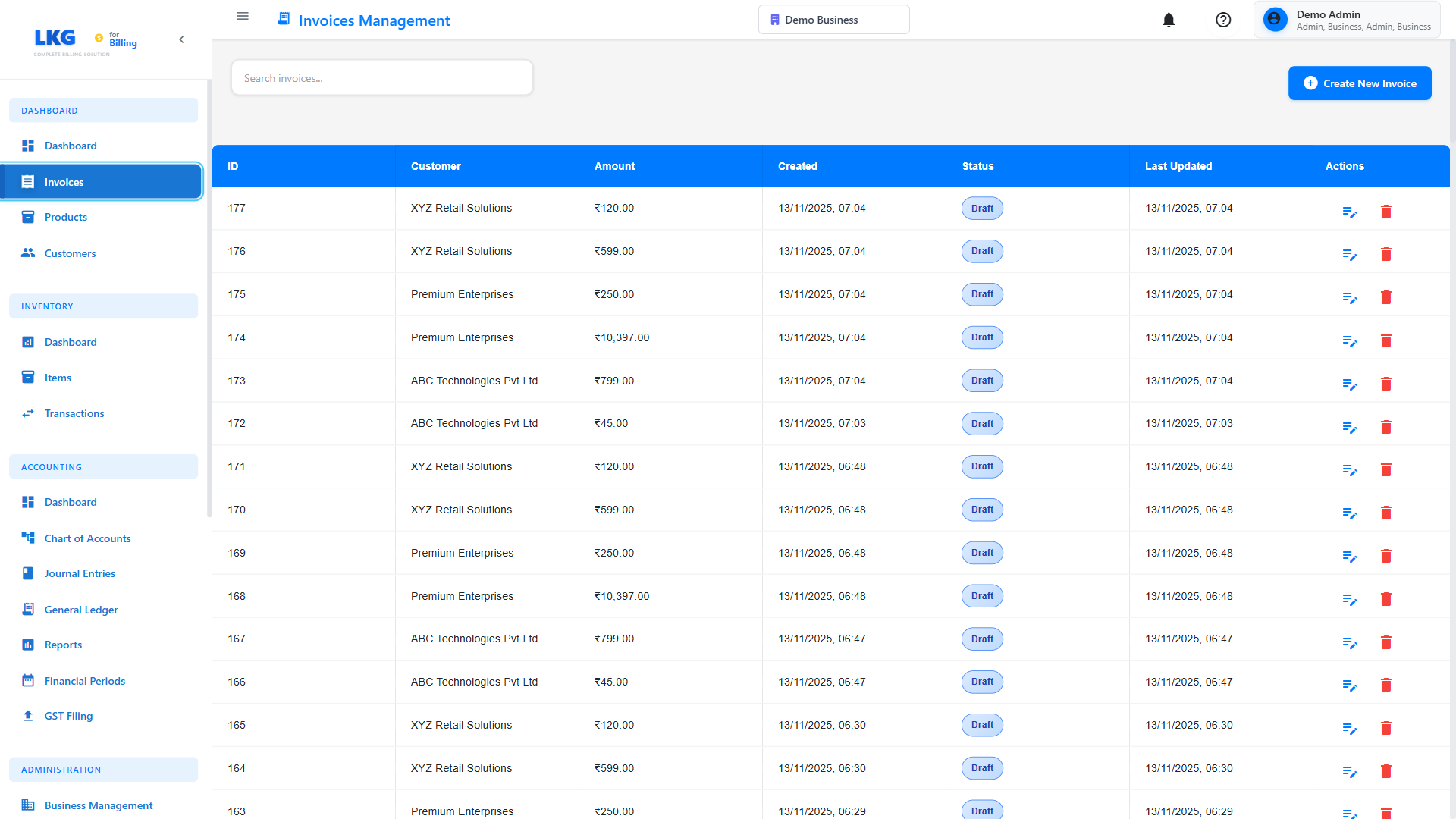
- Go to Invoices page
- Find the invoice in the list
- Click the Actions menu (⋮) or Mark as Paid button
- Confirm the payment details
- Click Save or Record Payment
From Invoice Detail View
- Open the invoice by clicking on it
- Click Record Payment or Mark as Paid button
- Fill in payment details (see below)
- Click Save Payment
Recording Payment Details
Payment Information Form
When recording a payment, enter the following information:
Required Fields:
-
Payment Date - When payment was received
Example:Nov 20, 2024 -
Payment Amount - Amount received
Example:₹5,000 -
Payment Method - How customer paid
Options: Cash, Bank Transfer, Credit Card, Debit Card, Check, UPI, Online Payment
Optional Fields:
-
Reference Number - Transaction ID, check number, etc.
Example:CHK-123456orUTR12345678901 -
Payment Notes - Additional details
Example:Partial payment - balance to follow -
Bank Account - Which bank account received the payment
Select from your configured bank accounts
Payment Method Examples
Cash Payment:
Payment Date: Nov 20, 2024
Amount: ₹5,000
Method: Cash
Reference: CASH-20241120-001
Notes: Received in person
Bank Transfer:
Payment Date: Nov 19, 2024
Amount: ₹10,000
Method: Bank Transfer
Reference: NEFT12345678901
Bank Account: HDFC Business Account
Notes: NEFT transaction
UPI Payment:
Payment Date: Nov 20, 2024
Amount: ₹2,500
Method: UPI
Reference: 434567890123
Notes: Google Pay transaction
Check Payment:
Payment Date: Nov 20, 2024 (deposit date)
Amount: ₹15,000
Method: Check
Reference: CHK-789456
Notes: Check #789456 - deposited to bank
Currently, the system supports marking invoices as fully paid. Payment must match the complete invoice amount.
Full Payment
Marking as Fully Paid
When customer pays the complete invoice amount:
- Open the invoice
- Click Mark as Paid or Record Payment
- Amount auto-fills with total invoice amount
- Enter payment method and date
- Click Save Payment
- Invoice status changes to Paid
- Badge turns green with "Paid" label
Quick Pay with Defaults
Some systems offer quick pay:
- Click Mark Paid button directly from list
- System automatically:
- Uses today's date
- Uses full invoice amount
- Sets default payment method (from settings)
- Payment is recorded immediately
- Great for cash payments or quick entries
Payment Methods
Configuring Payment Methods
Set up your accepted payment methods in Settings:
- Go to Settings → Payment Methods
- Enable/disable payment methods:
- ✅ Cash
- ✅ Bank Transfer
- ✅ Credit Card
- ✅ Debit Card
- ✅ Check
- ✅ UPI/Digital Wallets
- ✅ Online Payment Gateway
- Set default payment method
- Configure bank account details
Payment Method Details
Cash:
- Immediate payment
- No transaction fee
- Manual tracking required
- Good for: Small amounts, in-person sales
Bank Transfer (NEFT/RTGS/IMPS):
- 1-2 day processing (NEFT/RTGS)
- Instant (IMPS)
- Bank charges may apply
- Requires reference number (UTR)
- Good for: Large amounts, business payments
UPI/Digital Wallets:
- Instant transfer
- Low/no fees
- Requires transaction ID
- Good for: Medium amounts, quick payments
Credit/Debit Card:
- Instant payment
- Merchant fees apply (1.5-3%)
- Requires authorization code
- Good for: Online purchases, international
Check:
- 2-7 day clearing
- Bank charges for dishonored checks
- Requires check number
- Good for: Corporate clients, large amounts
Online Payment Gateway:
- Instant confirmation
- Gateway fees apply
- Automatic reconciliation
- Good for: E-commerce, online invoices
Viewing Payment History
Payment Transaction List
To see all payments for an invoice:
- Open the invoice
- Scroll to Payment History or Transactions section
- View table with:
- Payment date
- Amount paid
- Payment method
- Reference number
- User who recorded payment
- Notes
Example Payment History:
| Date | Amount | Method | Reference | Status |
|---|---|---|---|---|
| Nov 1, 2024 | ₹5,000 | UPI | 123456789 | Success |
| Nov 15, 2024 | ₹5,000 | Bank Transfer | NEFT9876543 | Success |
| Nov 30, 2024 | ₹10,000 | Check | CHK-456 | Cleared |
Payment Reports
Generate payment reports:
- Go to Reports → Payment Reports
- Select date range
- Filter by:
- Payment method
- Customer
- Amount range
- Export to Excel or PDF
Handling Overpayments
When Customer Pays Too Much
If a customer accidentally overpays:
- Record the actual payment received (overpaid amount)
- Invoice shows:
Invoice Total: ₹10,000
Paid: ₹12,000
Overpaid: ₹2,000
Status: Overpaid
Overpayment Options
Option 1: Issue Refund
- Process refund to customer
- Record refund transaction
- Update payment to reflect refunded amount
- Invoice shows correct paid status
Option 2: Create Credit Note
- Create a credit note for ₹2,000
- Apply to customer account
- Use credit toward next invoice
- Track in customer balance
Option 3: Apply to Different Invoice
- Create a credit note
- Apply overpaid amount to another unpaid invoice
- Both invoices updated automatically
Payment Reminders
Automated Reminders
Set up automatic payment reminders:
- Go to Settings → Invoice Settings
- Enable Payment Reminders
- Configure reminder schedule:
- 7 days before due date
- On due date
- 3 days after due date
- 7 days after due date
- 15 days after due date
Manual Reminders
Send a one-time payment reminder:
- Go to invoice list
- Filter by Unpaid or Overdue
- Select invoice(s)
- Click Send Reminder
- Review email template
- Click Send
Payment Reconciliation
Matching Bank Deposits
Reconcile payments with bank statements:
- Go to Payments → Reconciliation
- Import bank statement
- Match bank deposits to recorded payments
- Mark as reconciled
- Identify unmatched transactions
Bank Feed Integration
If you have bank integration:
- Connect your bank account in Settings
- Transactions automatically import
- System suggests matching invoices
- Approve or manually match
- Payments automatically recorded
Editing Recorded Payments
Modifying Payment Details
To edit a recorded payment:
- Open the invoice
- Go to Payment History
- Click Edit on the payment row
- Modify:
- Payment date
- Reference number
- Payment method
- Notes
- Cannot change paid amount (delete and re-record instead)
Editing payments creates an audit log entry for compliance.
Deleting Payments
To remove an incorrect payment:
- Open the invoice
- Go to Payment History
- Click Delete or Remove on the payment
- Confirm deletion
- Invoice status reverts (Paid → Unpaid or Partially Paid)
- Record correct payment
Common Scenarios
Scenario 1: Customer Paid Full Amount
Example: Customer pays ₹10,000 invoice via bank transfer
Steps:
- Open the invoice
- Click Mark as Paid
- Select payment method: Bank Transfer
- Enter payment date and reference number
- Click Save Payment
- Invoice status changes to Paid
Scenario 2: Check Bounced
Example: Customer paid with check that was dishonored
Steps:
- Find the invoice marked as Paid
- Go to Payment History
- Delete or mark the check payment as Failed
- Invoice reverts to Unpaid
- Add note: "Check dishonored - pending replacement payment"
- Contact customer for alternate payment
Scenario 3: Wrong Invoice Marked as Paid
Example: Accidentally marked Invoice #1001 as paid instead of #1002
Steps:
- Open Invoice #1001
- Delete the incorrect payment
- Status reverts to Unpaid
- Open Invoice #1002
- Record payment on correct invoice
Scenario 4: Customer Requests Payment Plan
Example: ₹30,000 invoice, customer wants to pay in 3 installments
Solution:
- Agree to payment schedule with customer
- Add note to invoice: "Payment plan: ₹10,000 monthly for 3 months"
- Record first payment: ₹10,000 (Month 1)
- Invoice shows Partially Paid
- Record second payment: ₹10,000 (Month 2)
- Record third payment: ₹10,000 (Month 3)
- Invoice shows Paid
Best Practices
Recording Payments
✅ Record promptly - Enter payments same day received
✅ Match dates - Use actual payment date, not recording date
✅ Add references - Always include transaction IDs
✅ Note details - Add payment notes for clarity
✅ Verify amounts - Double-check amount matches bank deposit
Payment Security
🔒 Verify before marking paid - Confirm money is actually received
🔒 Don't mark paid prematurely - Wait for check clearing
🔒 Document everything - Keep payment receipts and confirmations
🔒 Regular reconciliation - Match to bank statements weekly
🔒 Review overpayments - Investigate why customer overpaid
Troubleshooting
Cannot Mark Invoice as Paid
Possible Reasons:
- Invoice is in Draft status (finalize first)
- You don't have payment recording permission
- Invoice is already paid
- Invoice is deleted
Solutions:
- Finalize draft invoices before recording payment
- Check user permissions with administrator
- Verify invoice status
Payment Not Showing in Reports
Possible Reasons:
- Report date range doesn't include payment date
- Payment not saved properly
- Report filters excluding the payment
Solutions:
- Adjust report date range
- Verify payment was saved (check payment history)
- Remove or adjust report filters
- Refresh or regenerate report
Duplicate Payment Recorded
Problem: Same payment recorded twice by mistake
Solution:
- Open the invoice
- Go to Payment History
- Identify duplicate payment
- Delete one of the duplicate entries
- Invoice status and balance update automatically
Next Steps
- Invoice Overview - Understanding invoice management
- Draft Invoices - Working with drafts
- Editing Invoices - Making changes to invoices
- Deleting Invoices - Removing invoices
Important: Always verify that payment has been received in your bank account before marking an invoice as paid. This prevents cash flow discrepancies and accounting errors.